
Live Editor
Once your article is generated, Contentpen opens it in the Live Content Editor. This editor lets you review, edit, and enhance your content in real time, similar to tools like Google Docs or Microsoft Word, but built specifically for content and SEO workflows.
This guide walks you through everything you can do inside the editor.
Editor overview
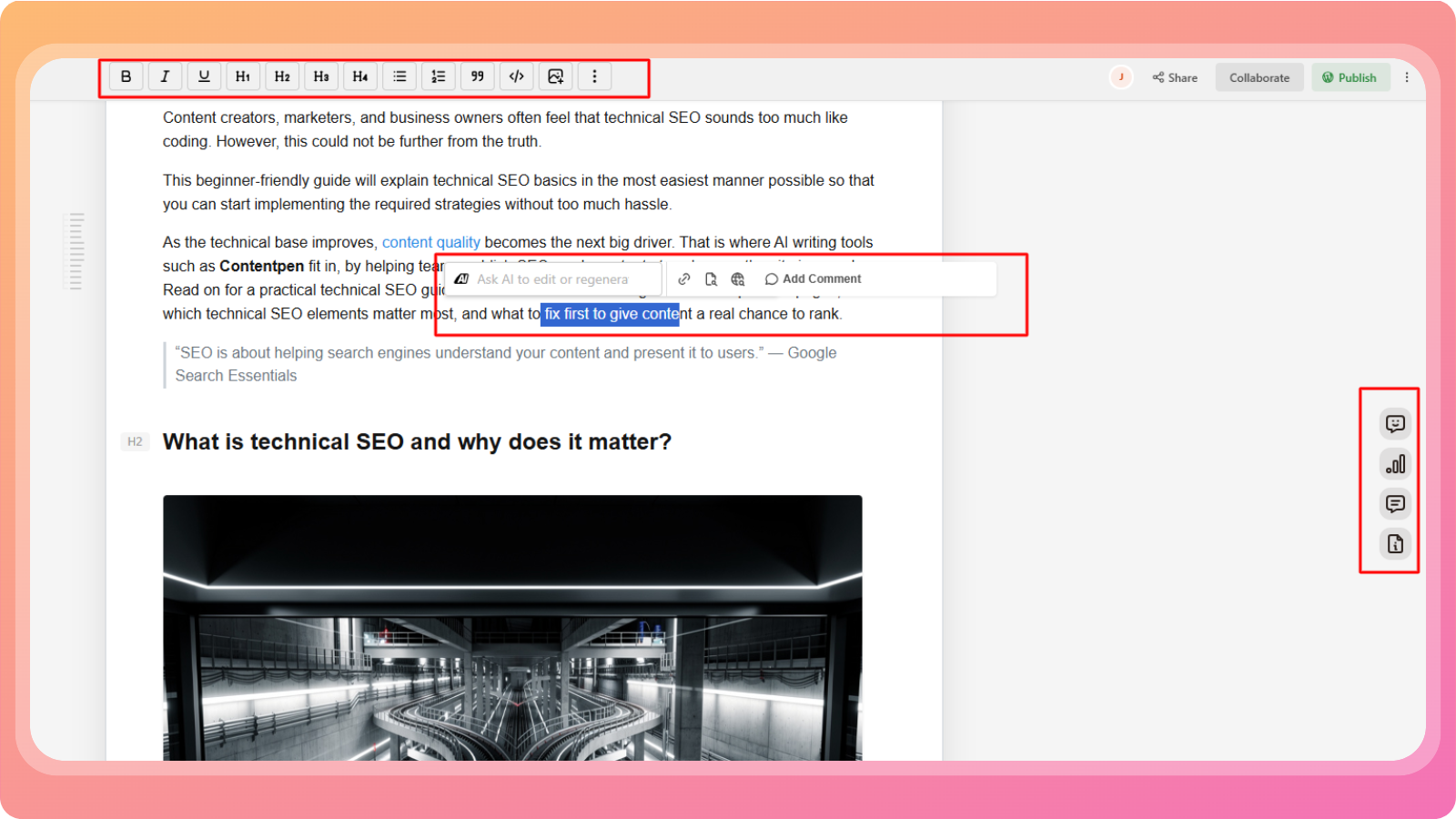
After an article is generated, and it opens, you’ll see:
Your article content in the main editing area
A formatting toolbar at the top
Contextual options that appear when you select text or place your cursor
All changes are applied instantly, so you can freely edit and experiment.
Text formatting options
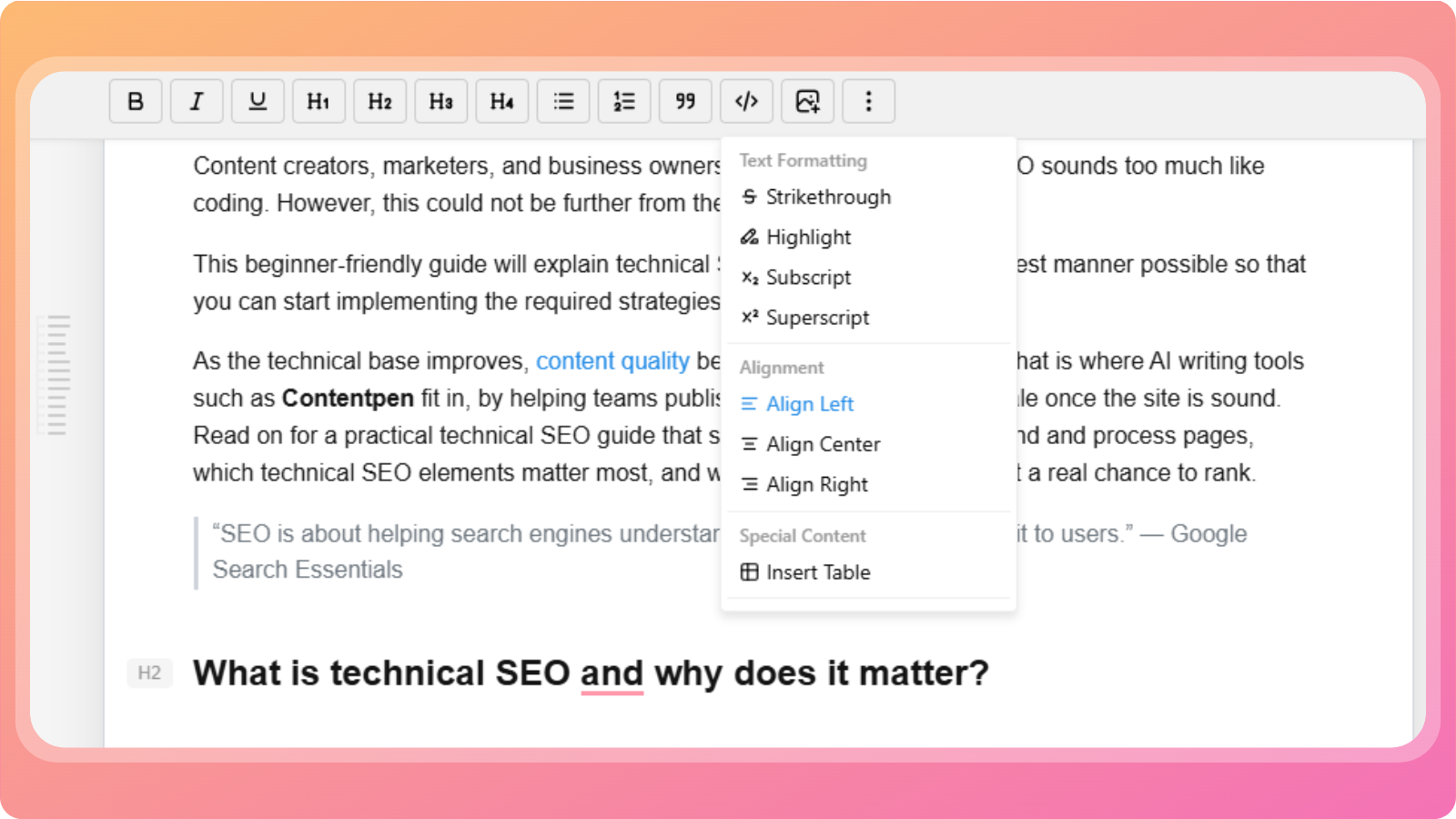
The top toolbar includes common text-editing tools:
Bold, italic, underline – Emphasize text
Headings (H1, H2, H3, H4) – Structure your content properly
Bulleted and numbered lists – Organize information clearly
Quotes – Highlight tips, advice, or important statements
Additional formatting tools include:
Strikethrough
Highlight
Subscript and superscript
Alignment and layout
You can control text layout using:
Align left
Center
Align right
You can also insert tables to display structured data inside your article.
Adding images
The editor lets you add images anywhere in your content.
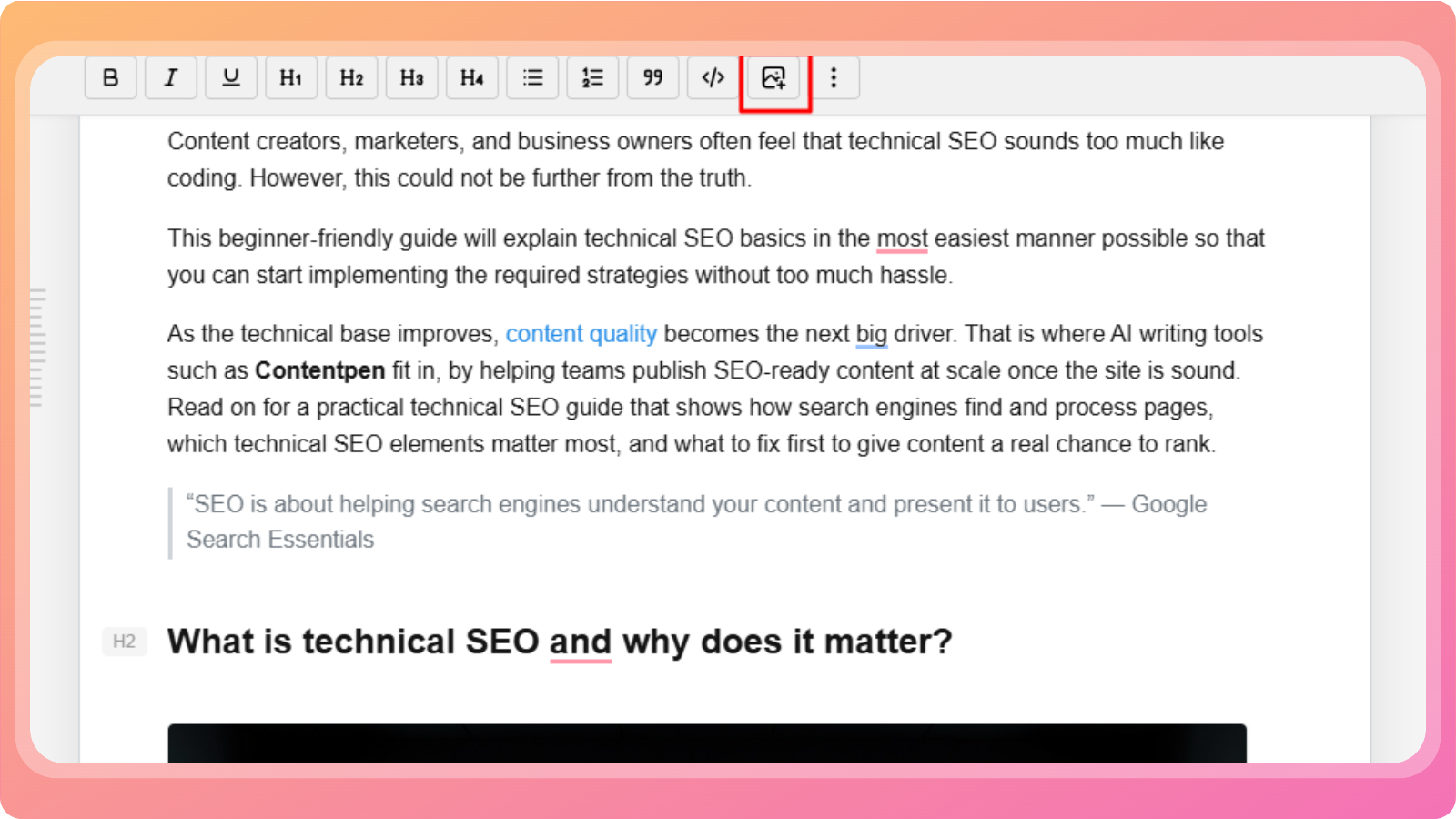
When you choose to add an image, you’ll see several options:
AI Image Generator
Use AI to generate custom images for your article.
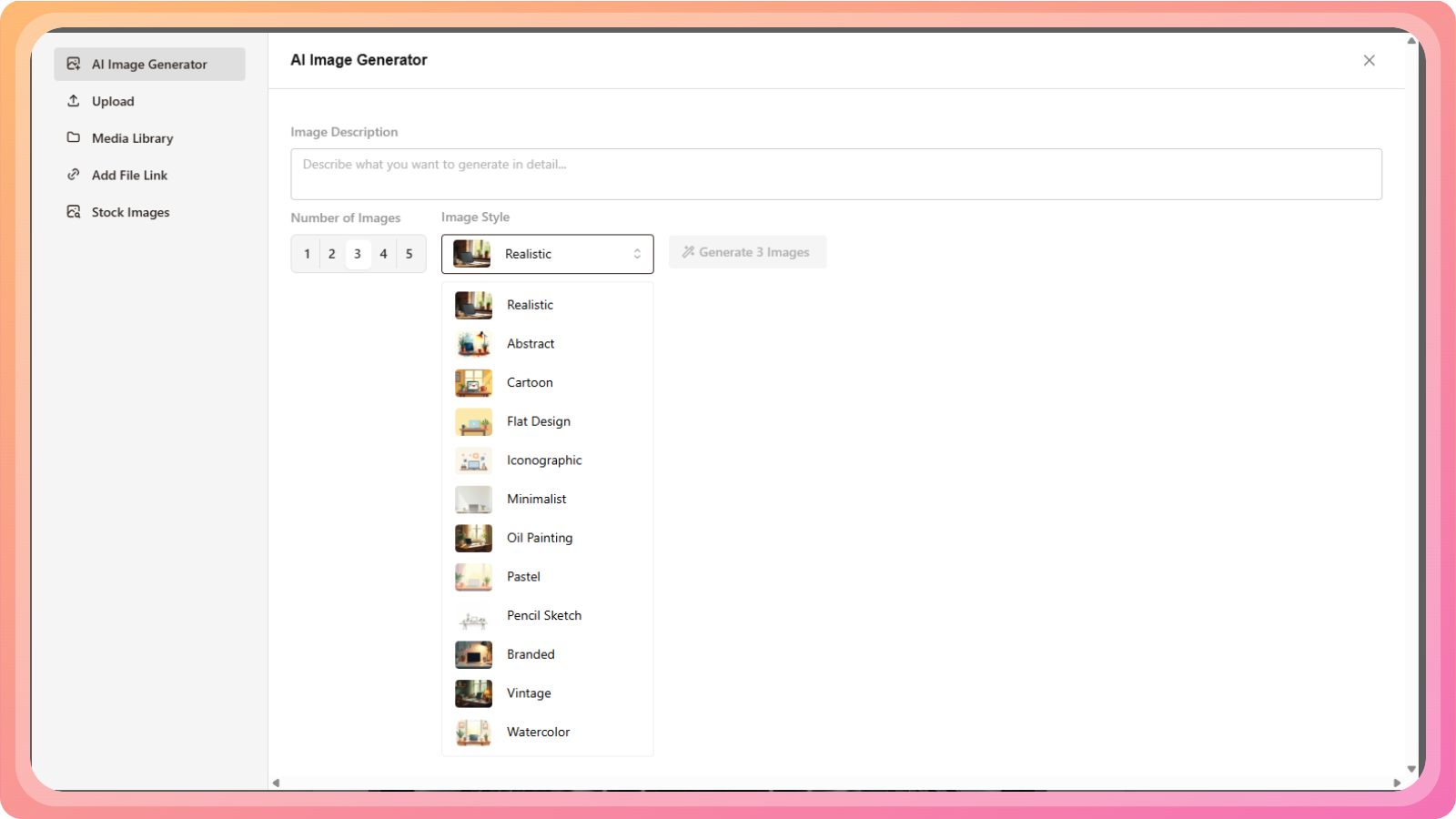
You can:
Describe the image you want
Choose the number of image variations
Select an image style from the dropdown, including:
Realistic
Abstract
Cartoon
Flat design
Iconographic
Minimalist
Oil painting
Pastel
Pencil sketch
Branded
Vintage
Watercolor
Click Generate, review the results, select the image you like, and click Use selected image to insert it into your article.
Other image options
You can also:
Upload an image from your device
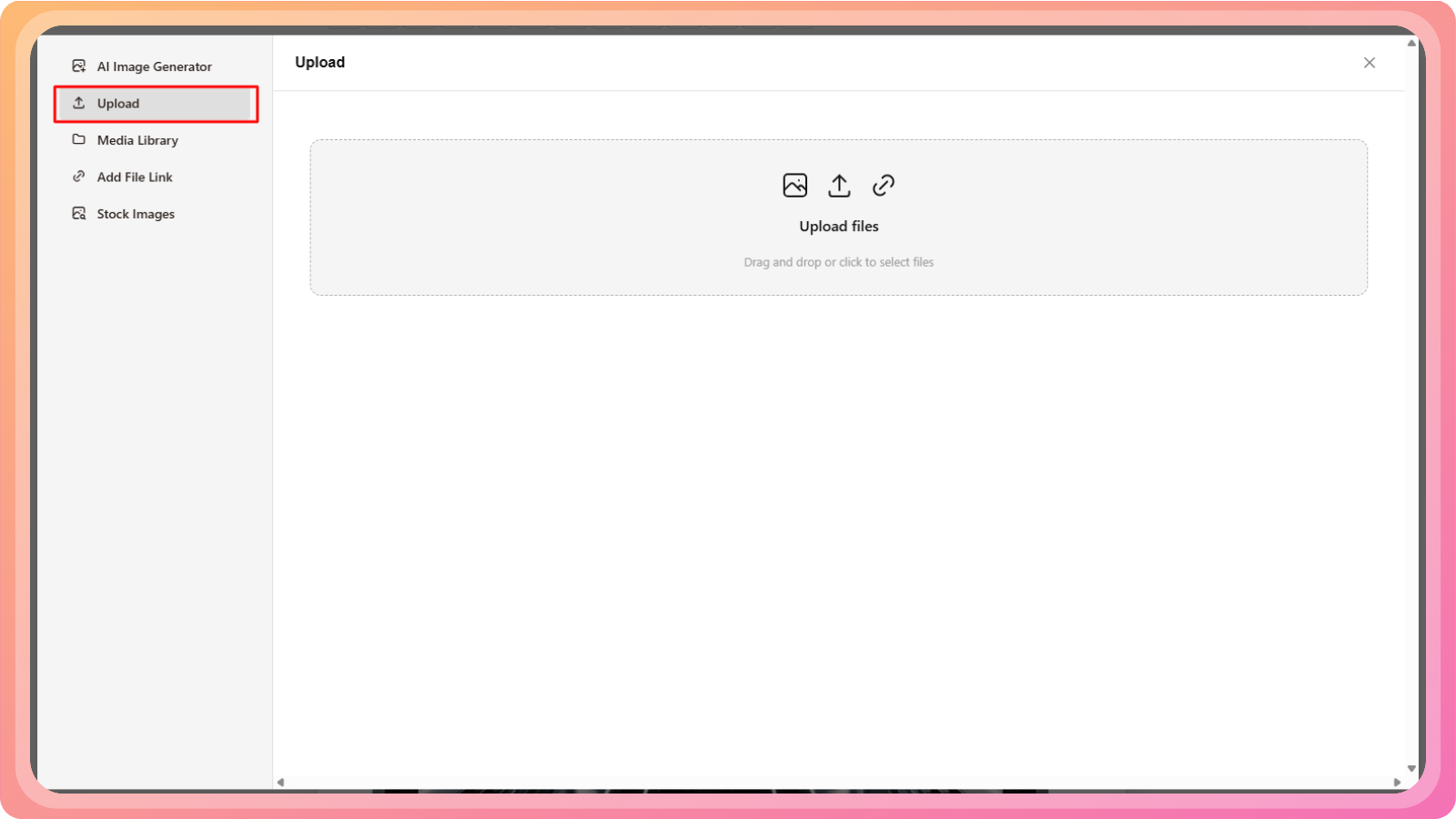
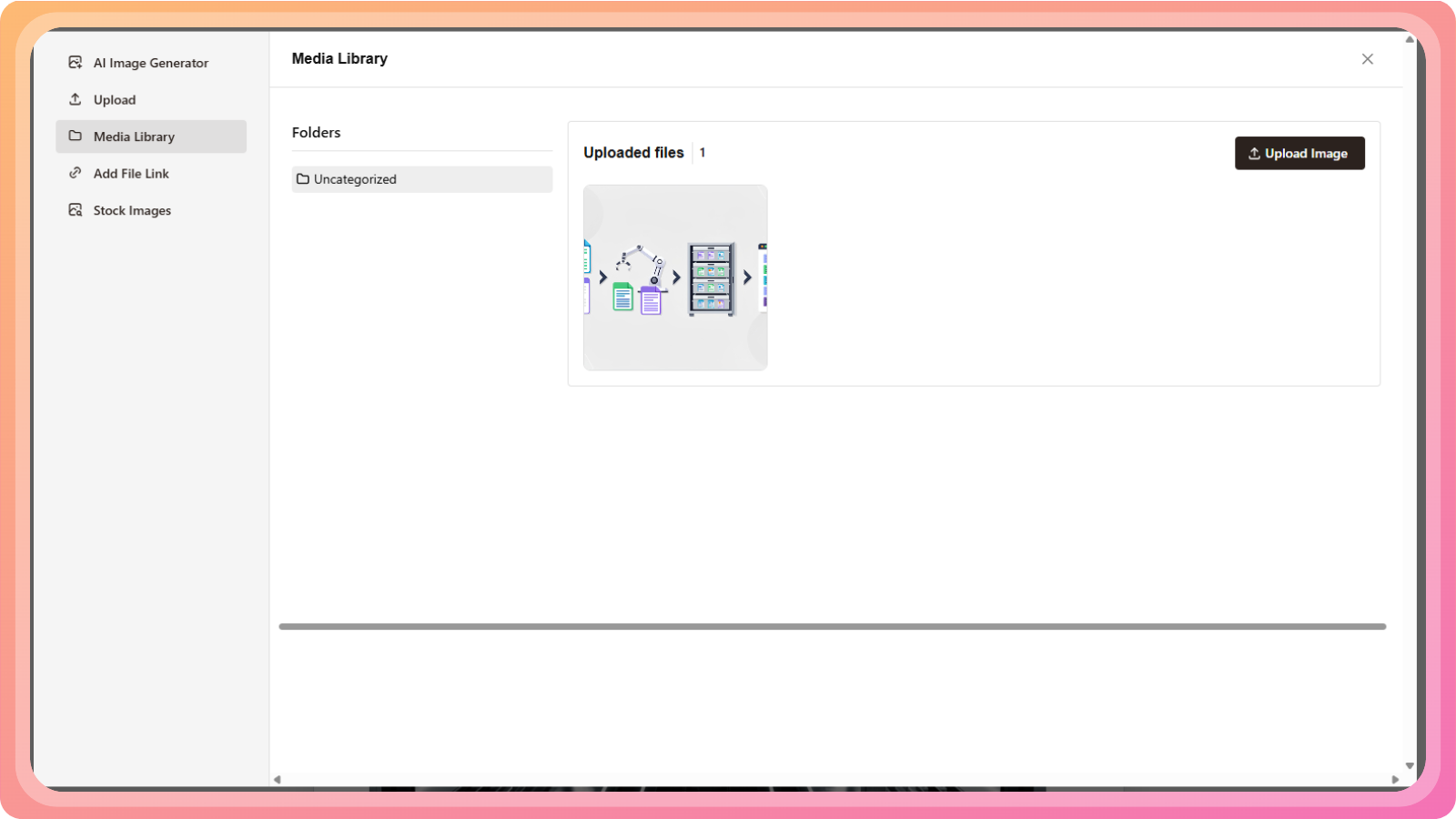
Use the Contentpen media library (previous uploads or AI-generated images)
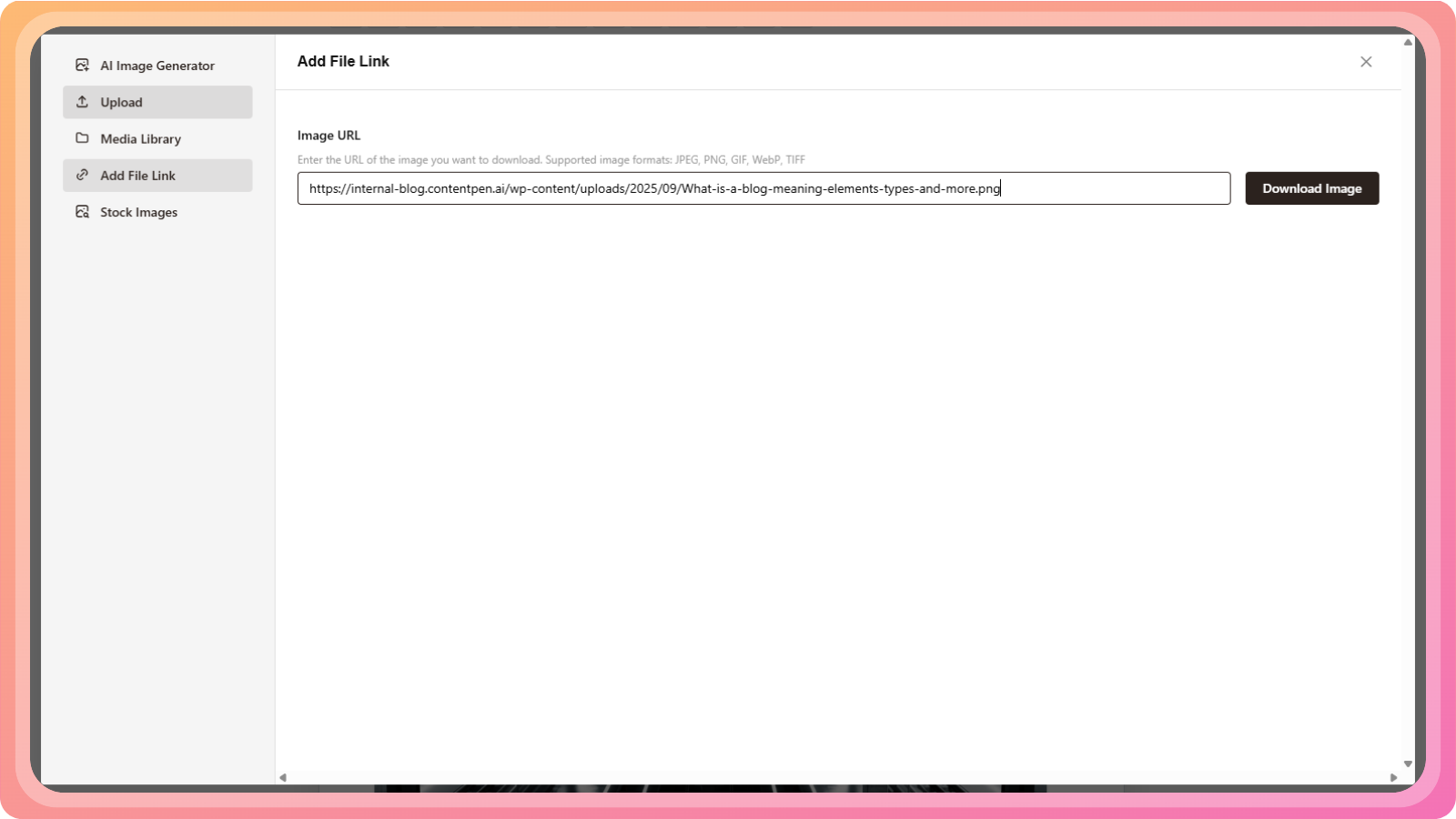
Add an image using a URL
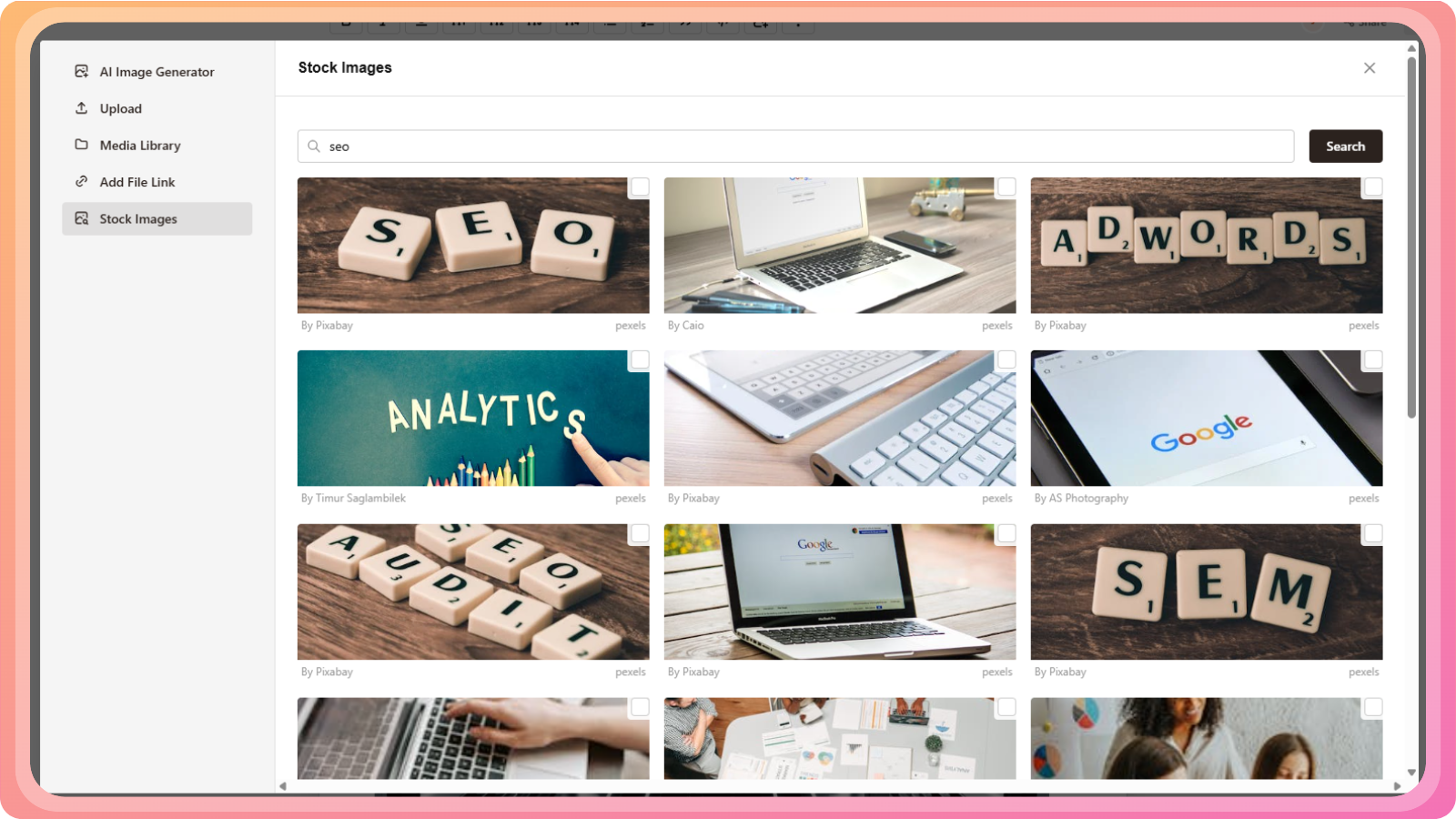
Search and insert stock images
Editing with AI inside the content
You can interact with AI directly inside the article.
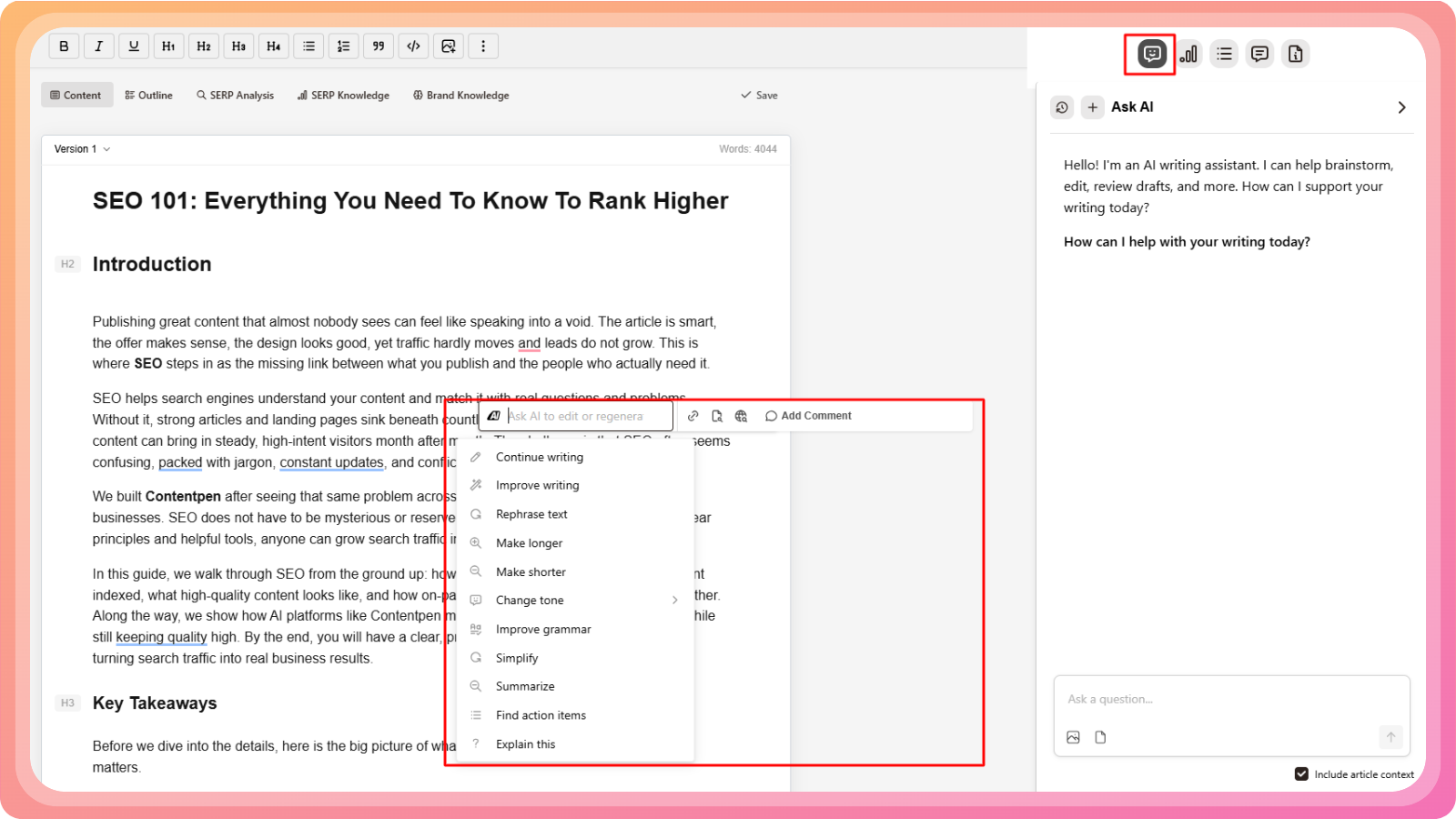
When you highlight any word, phrase, sentence, or paragraph, a contextual menu appears that lets you:
Ask AI to rewrite, expand, shorten, or improve the selected content
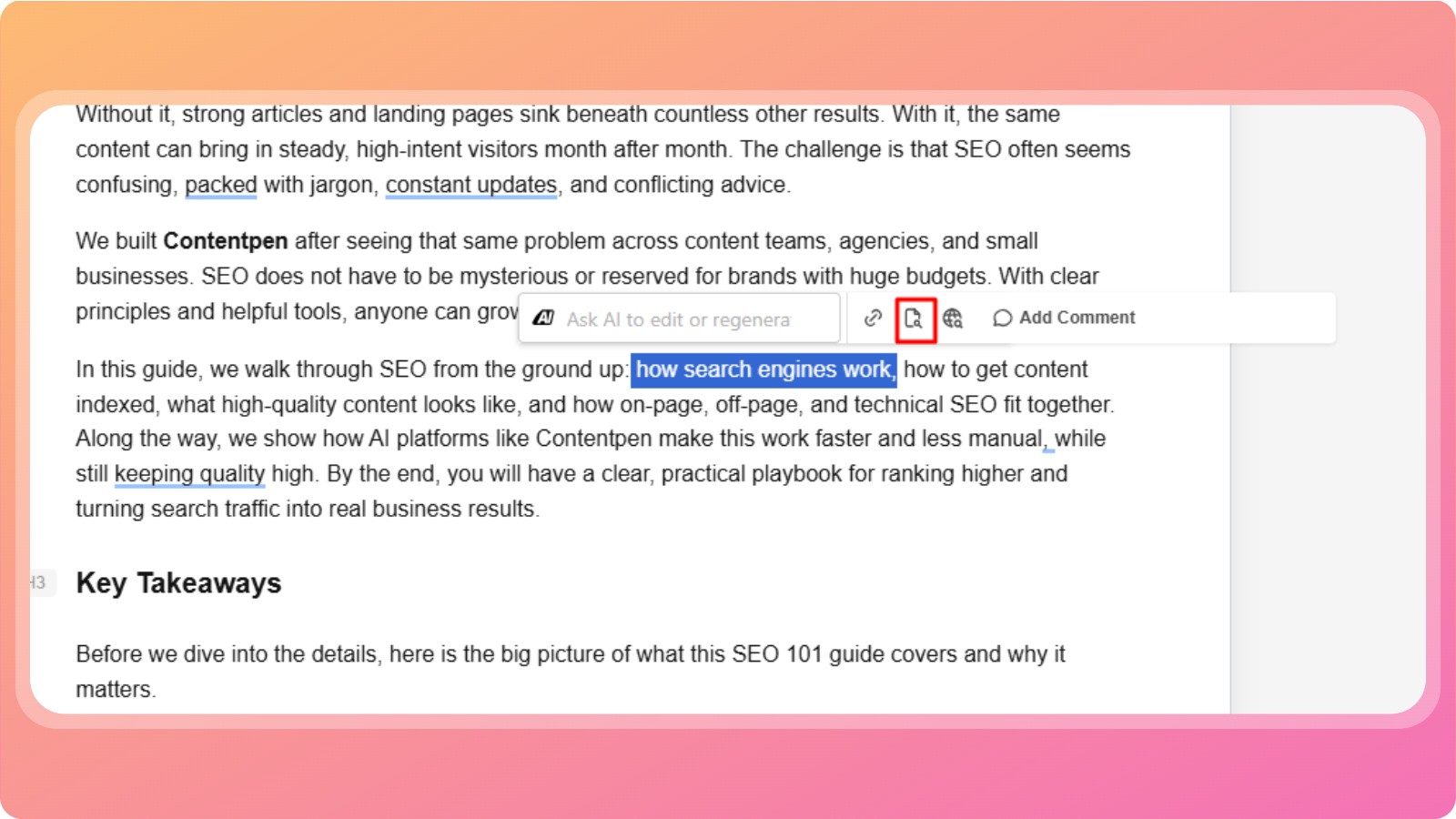
Add an internal link relevant to the selected text
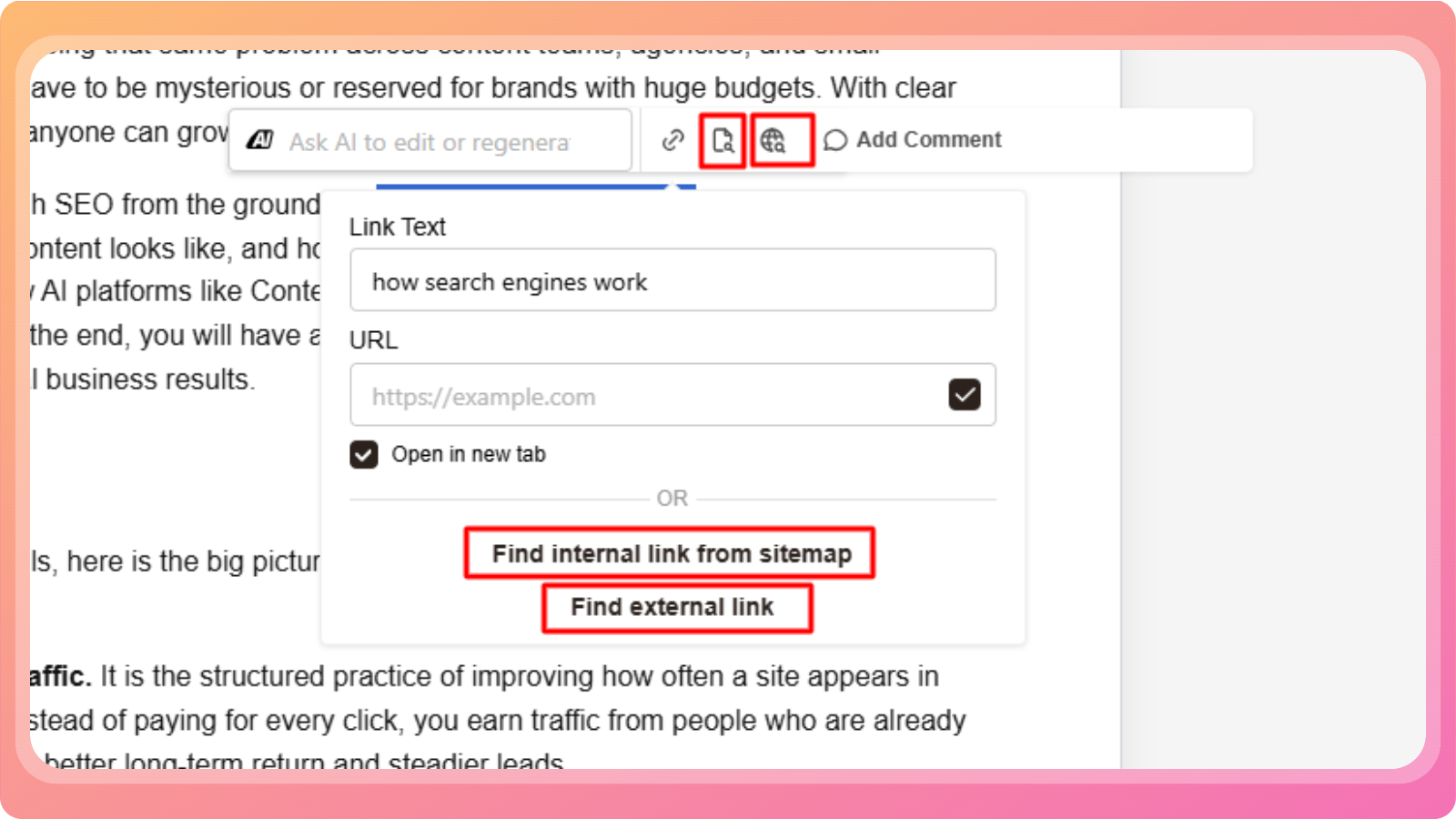
Add an external link
Leave a comment for collaboration or review
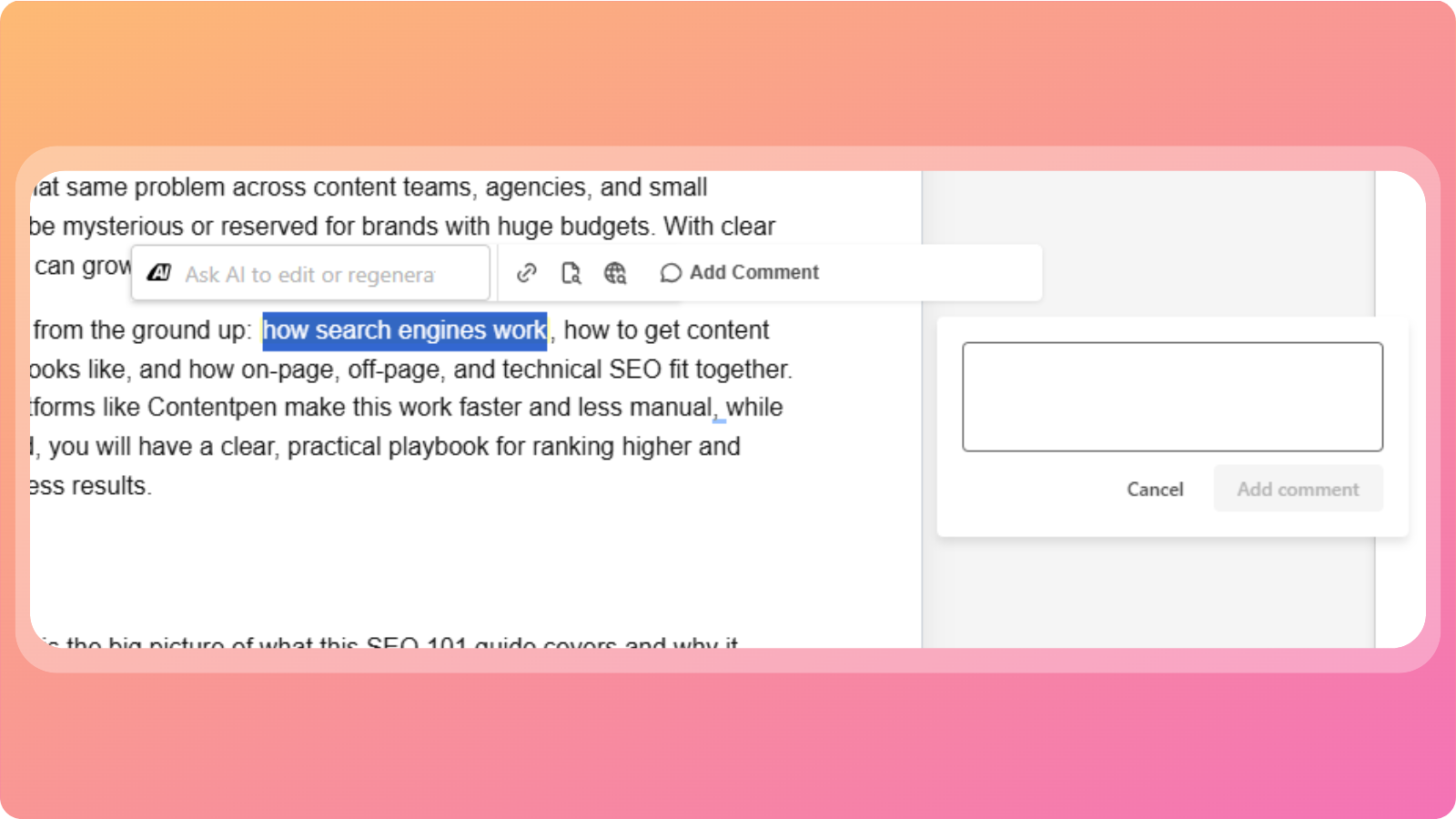
This makes editing fast and highly targeted.
Using Slash commands
You can quickly add or format content using slash commands.
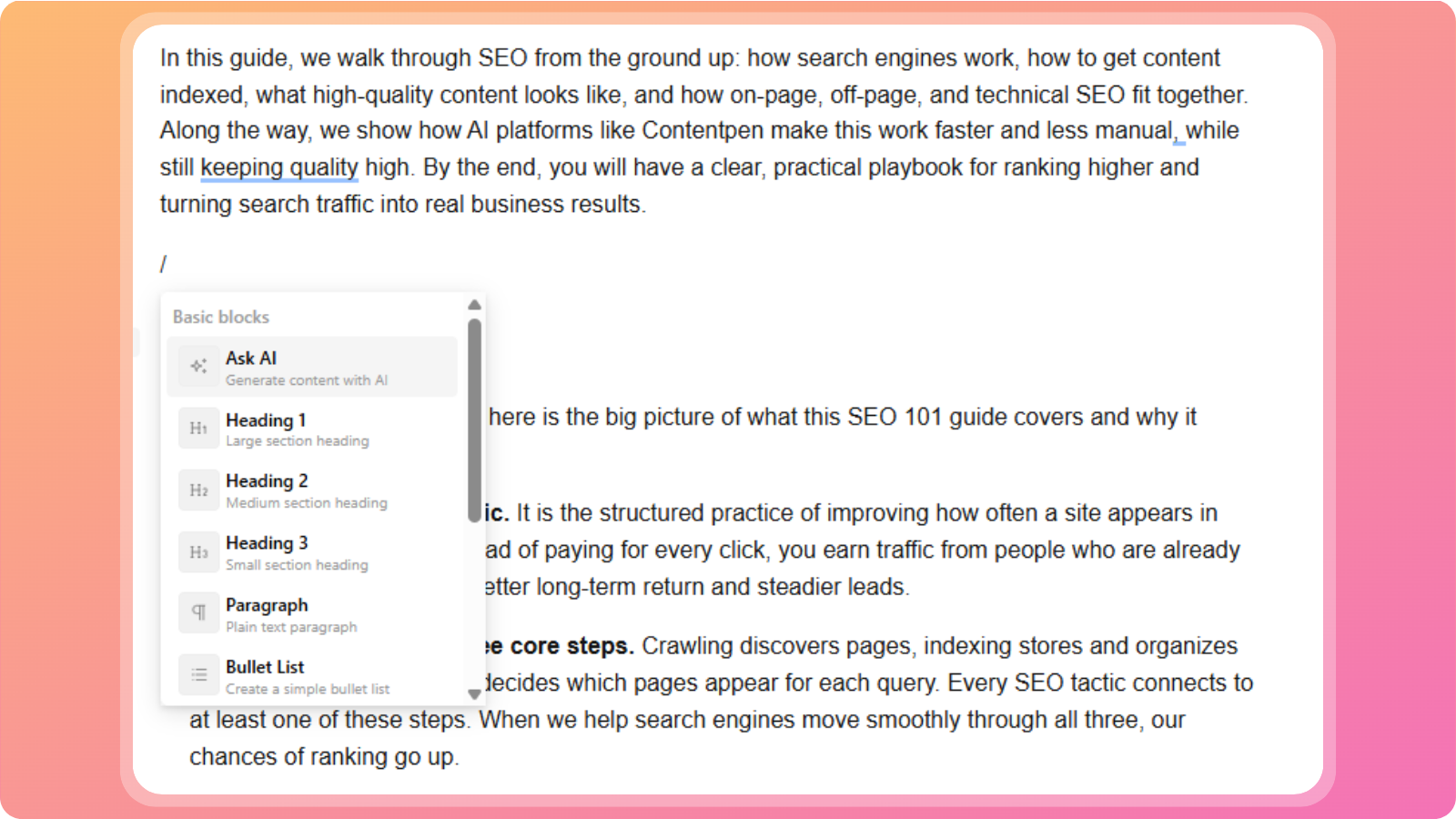
Inside the editor, type / and a menu will appear with options such as:
Ask AI
Heading 1
Heading 2
Heading 3
Paragraph
Bullet list
Numbered list
Quote
Code block
Divider
Table
Slash commands help you structure content without using the toolbar.
Best practices
Use headings to improve readability and SEO
Add images to break up long sections
Use Ask AI selectively for targeted improvements
Review formatting before publishing
The Live Content Editor gives you full control over your content, combining manual editing with powerful AI assistance, all in one place.
If you need help using the editor or have questions about any feature, feel free to reach out to our support team. We’re always happy to help.
Was this article helpful?