
Topics: review, approve, and swap
Every suggestion Autopilot makes arrives as a topic: one article to write, or one page to fix. This article covers what you do with them — approve one, decline one, swap in a keyword of your own, or move its date.
None of it is required. Autopilot keeps the queue stocked either way. These are simply the moments where your judgement changes what gets written.
What a topic is
A topic is a pre-generation suggestion. It names something worth writing about and carries the reason it was picked — the ranking it sits just below, the impressions it could recover, the competitor covering it that you don't.
Two kinds land in the same queue:
New articles — something you don't cover yet, that your search data says you should.
Page fixes — a rewrite of a page you already have, built from the analysis of that page.
They behave the same way in almost every respect. The one difference is that a page fix has nothing to write instead of it, which is why it can't be swapped.
Approving a topic is free, and reversible. Putting one in the queue spends nothing — the cost only arrives when the article is actually written. You can approve, decline, and replace topics as often as you like before then. Credits and allowances covers what does and doesn't spend.
Not every topic waits for you
What lands in your queue depends on the autonomy setting you chose, separately for each category. On Show me the topic first, every topic arrives needing a decision. On Write it, I approve publishing or Write and publish for me, topics are born already approved — you meet them further along, as a draft to sign off or as a live article.
So a quiet queue usually means your setting is doing its job, not that Autopilot has stopped. Control, cadence, and how it runs walks through the three levels.
What each status means
Each topic wears one badge, written in plain words rather than internal names. The badge tells you where the topic is and what, if anything, it wants from you.
Badge you'll see | What it means | What you can do |
|---|---|---|
Needs approval | Autopilot proposed it and is waiting for your decision. | Approve, swap, change the date, or skip |
Auto writes soon / Auto writes on Aug 28 | Already approved, waiting for its date. | Write it now, change the date, or skip |
Generating | Being written right now. | Nothing — it finishes on its own |
Generated · approve to publish | Written, and waiting for you to sign it off. Appears when auto-publish is off. | Approve as is, or open the draft and edit it first |
Scheduled | Approved and going live on its date. | Change the publish date, or skip |
Live | Published to your site. | Nothing — it's done |
Could not publish | Written and approved, but publishing didn't go through. The article is safe in your drafts. | Try publishing again, open the draft, or change the date |
Skipped | You declined it. | Put it back |
Expired | Autopilot retired it because it sat too long without being acted on. | Put it back |
Nothing is ever deleted. A declined or expired topic keeps its row, which is why both can be brought back. Topics declined under an older label show as Skipped too — it was the same decision.
The list can be filtered to Needs you, which shows only the topics waiting on a person: Needs approval, Generated · approve to publish, and Could not publish. An empty Needs you view is good news.
Review, approve, and swap
Opening a topic shows its reason, its date, and the one or two actions that make sense for it right now. Everything else sits behind the menu, so the action the topic is actually about is never buried.
Approve it
Approving moves a topic into the backlog and gives it a date. It costs nothing and commits you to nothing — you can change the date, swap it, or skip it afterwards, right up to the moment it's written.
Page fixes show the analysis of the page behind them — what's weak, and what a rewrite would change — so you can judge the argument before you commit to it.
Write it now
On an approved topic, Write it now starts it immediately instead of waiting for its date. This is the first action in this article that spends, and the button says so: it uses one article from your allowance.
You never have to use it. Approved topics are written on their dates without any input from you. It exists for the topic you want today rather than next week.
Approve a draft
When auto-publish is off, a finished article waits for you as Generated · approve to publish, and there are two ways forward:
Approve as is — it publishes on its date.
Open the draft — edit it first, then approve. For a page fix this reads Review the changes, and shows you what the rewrite alters.
Nothing goes out until you act, so a draft can wait as long as you need. Drafts and publishing covers the editing side.
Swap it for your own keyword
Swap is how you disagree with a suggestion: it declines the topic Autopilot offered and names the keyword you'd rather write about instead.
The replacement takes the original's date, so your week keeps its shape — you get a different article, not an extra one. That's the point. Swapping is a redirect, not an expansion, and it can't quietly inflate your cadence.
Swap is free. The article is charged when it's written, exactly like any other.
Only new articles can be swapped. A page fix improves a page you already own, so there is nothing to write in its place — the app tells you that, rather than offering a search that can't go anywhere. Skip the page fix instead, and get your keyword in by swapping a new-article topic you're less attached to.
The keyword field suggests keywords from your workspace's list that are still available — nothing written about them yet, nothing already queued — with their search volume, so you can see what you're choosing between. If the one you want isn't there, type it: any keyword is accepted, and Autopilot writes about exactly what you typed.
Two refusals are worth recognising, because they mean something rather than signalling a fault:
"…is already in your queue" — that keyword is already planned, and the message tells you where to find it.
"…the same keyword as the topic you are replacing" — pick a different one, or just skip the original.
Change the date
Every topic that hasn't published can be moved, and the date drives both halves of the work: it decides when the article is written and when it goes live.
The one limit is that you can't choose a day the system has already gone past. Today is never offered, because that day's run has already happened and a topic dated today wouldn't be written today. For a topic that hasn't been written yet, tomorrow stays available until the early hours, when the daily run happens.
If the article already exists and is scheduled, moving the topic's date moves the publish date with it, so the article and the calendar never disagree.
Skip it, and put it back
Skip is the only way to decline, and it works at every stage — before approval, after approval, and after the article is written. Nothing is deleted; only the consequence changes:
Before it's written — the topic leaves the queue, and Autopilot won't suggest the same thing again for about four weeks. That window is deliberate: long enough that a topic you rejected stays rejected, short enough that a changed mind or a changed site can bring it back.
After it's written — the article stays in your drafts. Skipping ends the topic's life in the queue, not the article.
Either way it moves to the Skipped tab, where Put it back returns it to the queue. Putting it back also lifts that four-week window, because the window exists to stop Autopilot re-suggesting work — never to stop you asking for it.
Where your topics appear
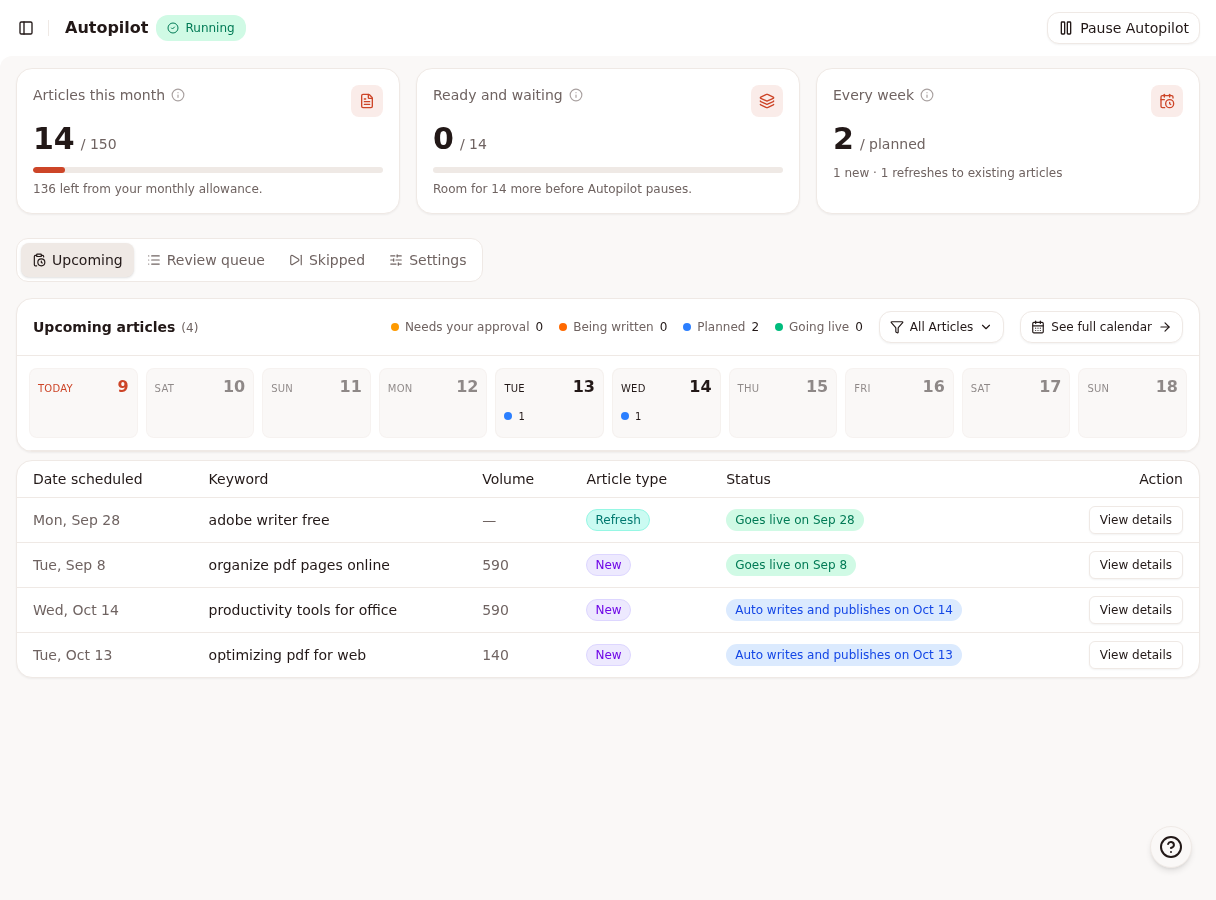
The Autopilot page holds the queue; the Planner shows the same topics laid out in time. Both act on the same topics, so a change in one is a change in the other.
On the Autopilot page
Four tabs sit above the list:
Upcoming — everything that hasn't finished, with its date, keyword, search volume, article type, and status. Most of the work in this article happens here.
Review queue — generated articles waiting for your sign-off.
Skipped — everything you declined or Autopilot retired, each with Put it back.
Settings — cadence, autonomy, and where it publishes.
In the Planner
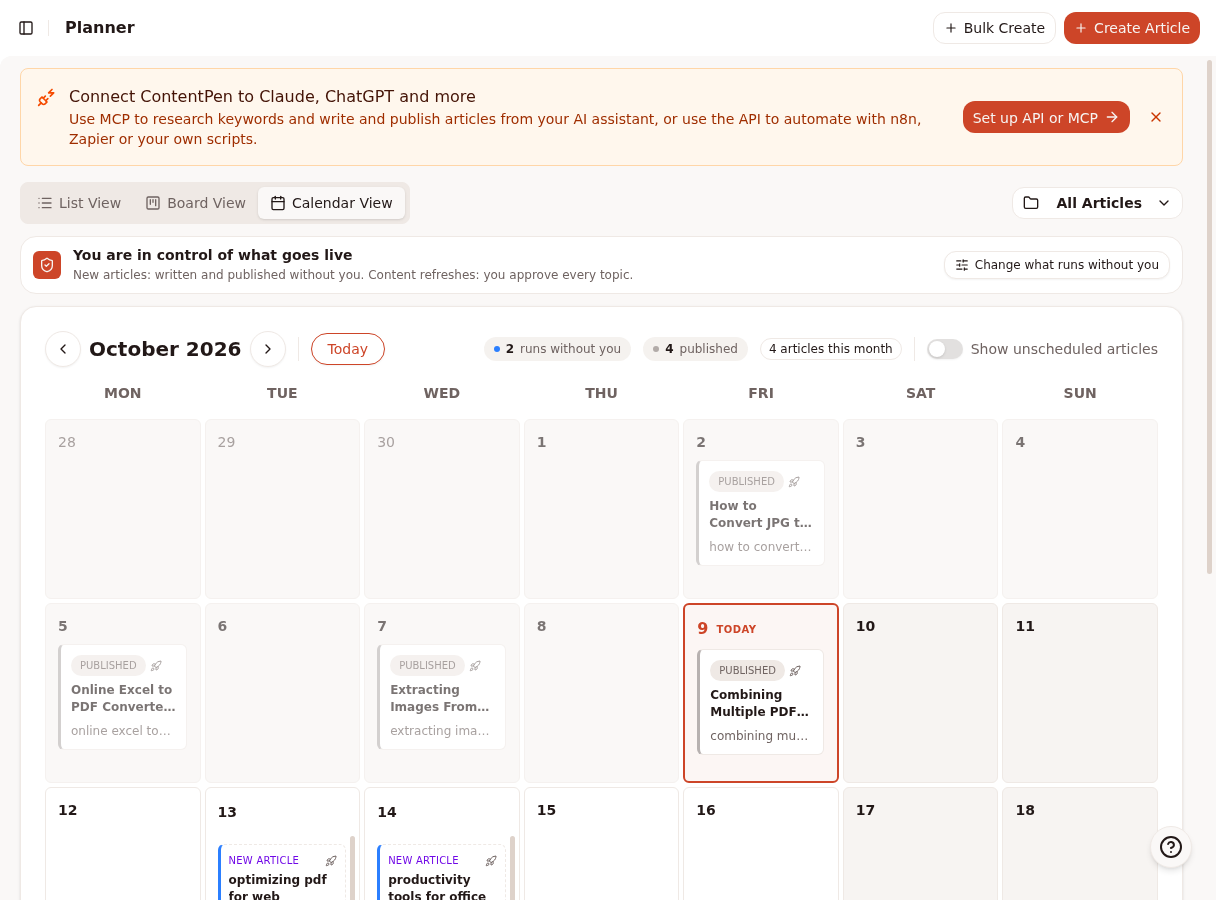
The Planner adds your topics to the calendar you already use for everything else:
The calendar shows topics on their dates, labelled with where they came from.
The control bar summarises your Autopilot setup and links to its settings.
The upcoming articles table lists what's coming and when, in order.
The calendar is where gaps and pile-ups become obvious — two new articles landing in the same week, or a stretch with nothing planned. Changing a date works from either view; the Planner is simply the better one when the question is when rather than what.
Related
Was this article helpful?