
Connect Google Search Console
Connect Google Search Console to see your site's clicks, impressions and rankings in ContentPen, and to get SEO opportunities based on your real search data. ContentPen only asks Google for read-only access.
Before you start: you need the Growth plan or higher, the Owner, Administrator or Manager role in the workspace, and a Google account with Owner or Full User access to your site in Google Search Console.
Step 1: Open Google Search Console in Integrations
In the sidebar, click Integrations, then click Google Search Console.
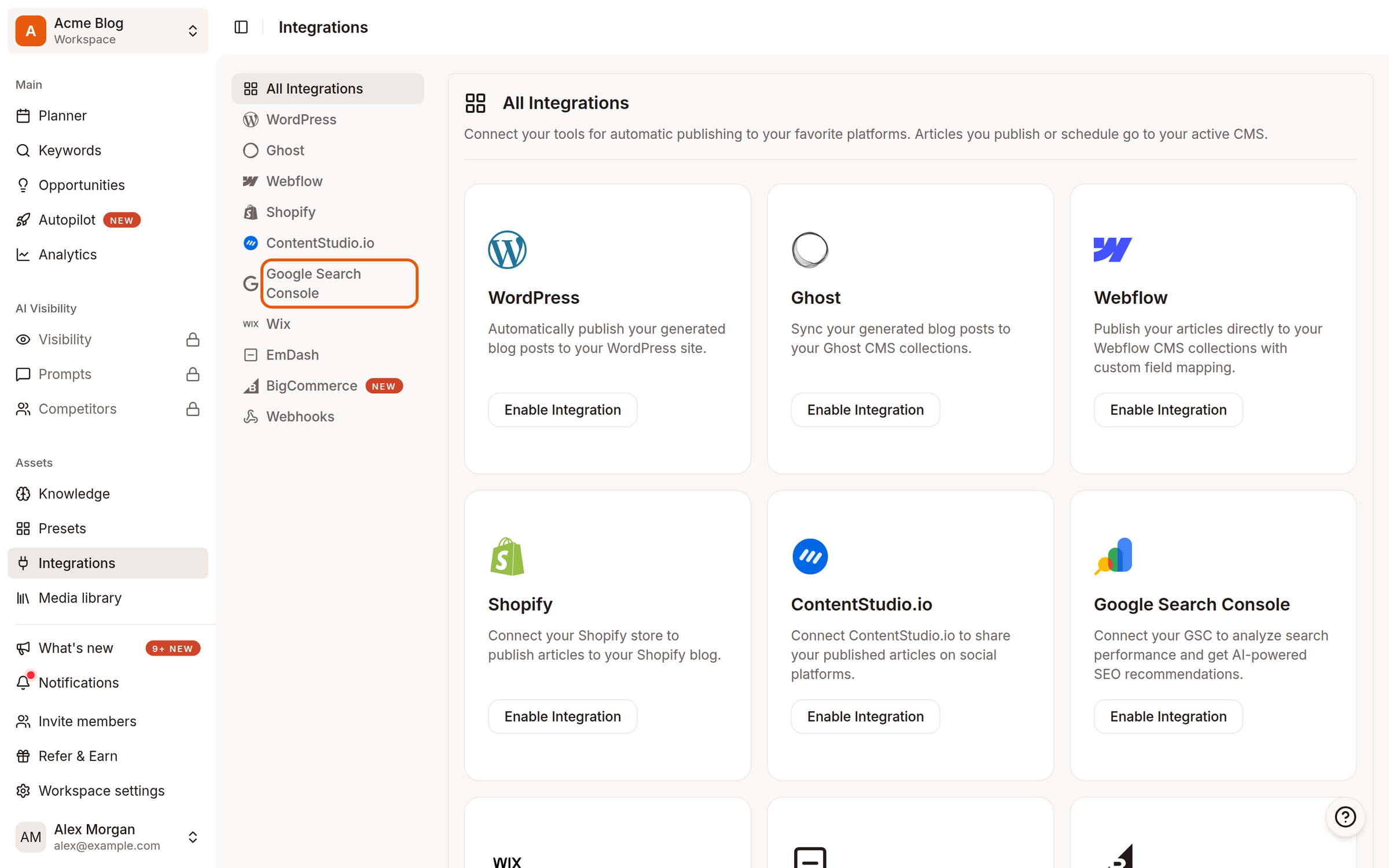
Step 2: Click Connect Google Search Console
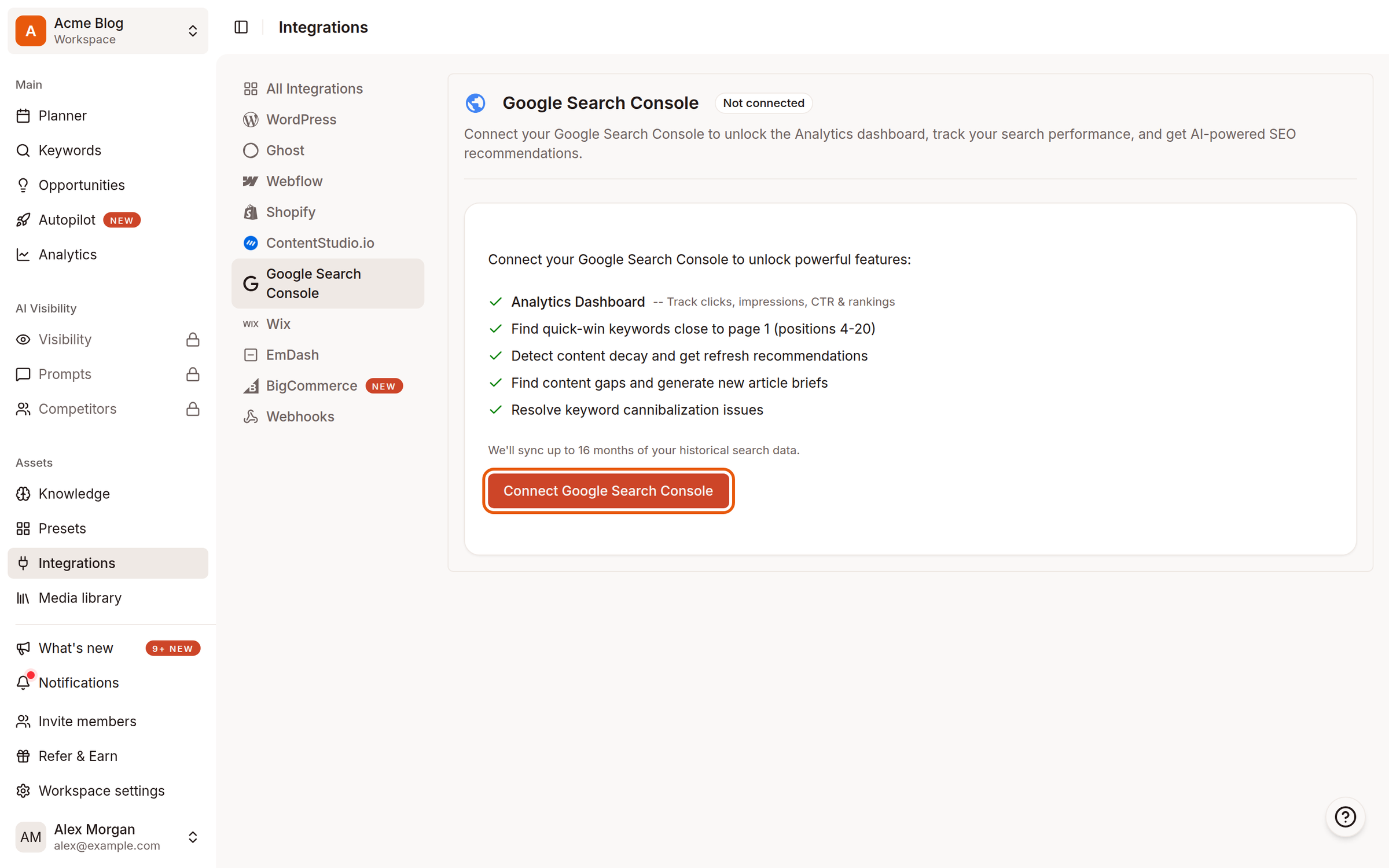
Step 3: Allow access in Google
Google opens in the same window. Choose your Google account and allow ContentPen to View Search Console data for your verified sites. Keep this box checked, or ContentPen can't see your sites.
You're taken back to ContentPen, and the Configure Google Search Console window opens.
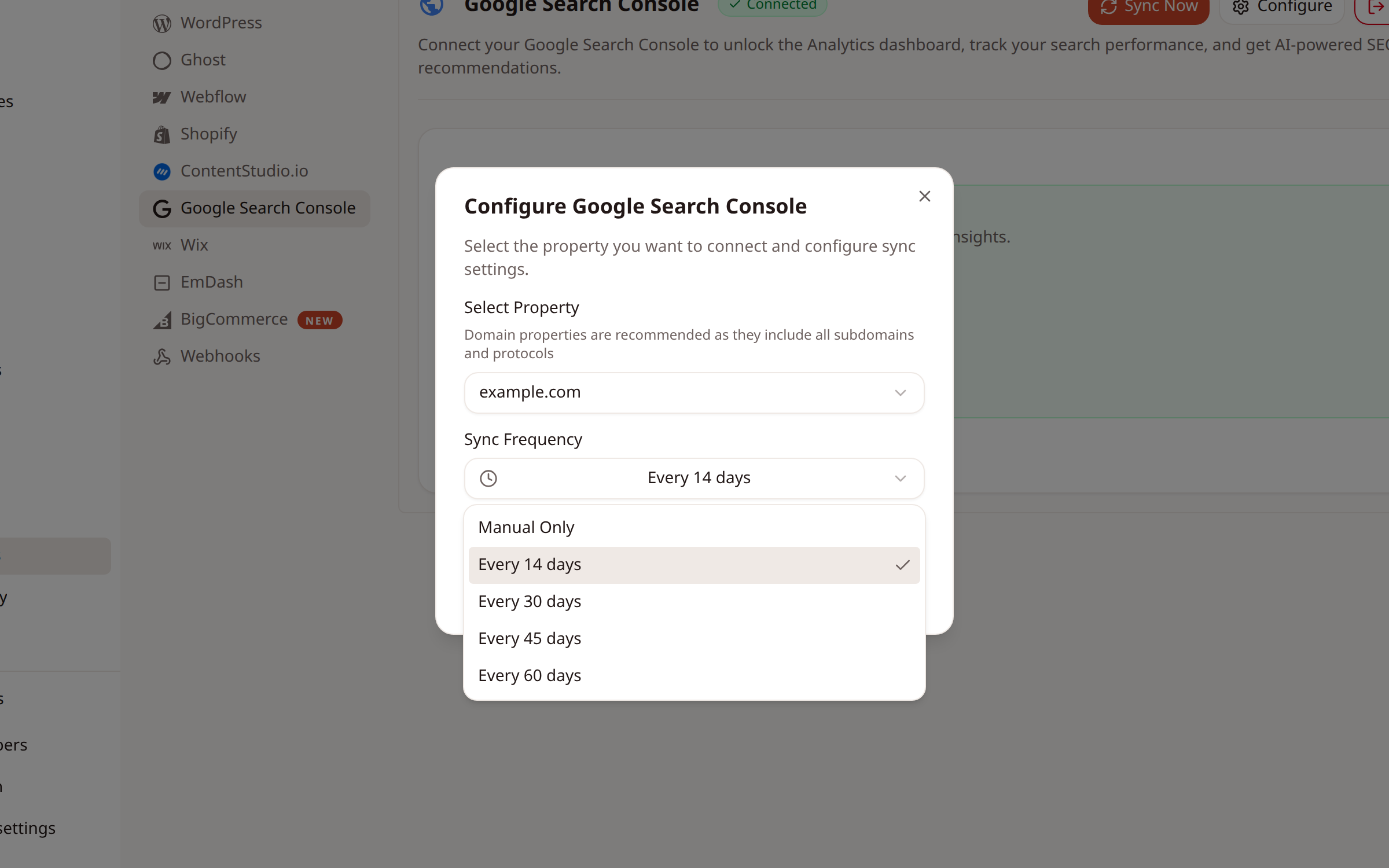
Step 4: Choose your site and how often to sync
Under Select Property, choose your site. If you have a domain property, pick it: it covers all versions of your site (http, https, www and subdomains).
Under Sync Frequency, choose how often ContentPen refreshes your data: Manual Only, or every 14, 30, 45 or 60 days.
Step 5: Click Save Settings
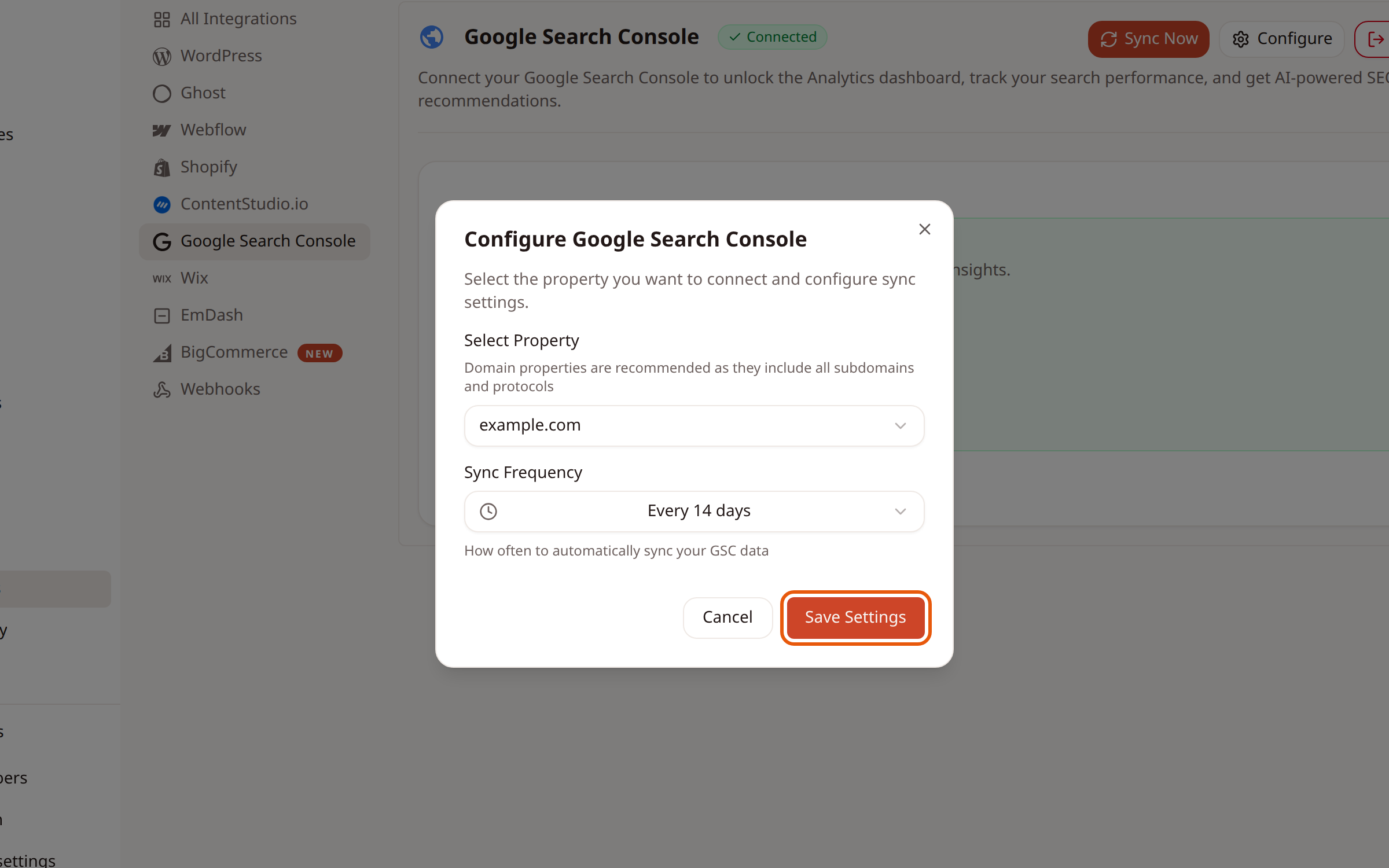
ContentPen starts the first sync right away and pulls up to 16 months of data. This can take a few minutes.
Step 6: Check the connection
The panel now shows Connected, with your property, sync schedule, last sync and the date range of your data.
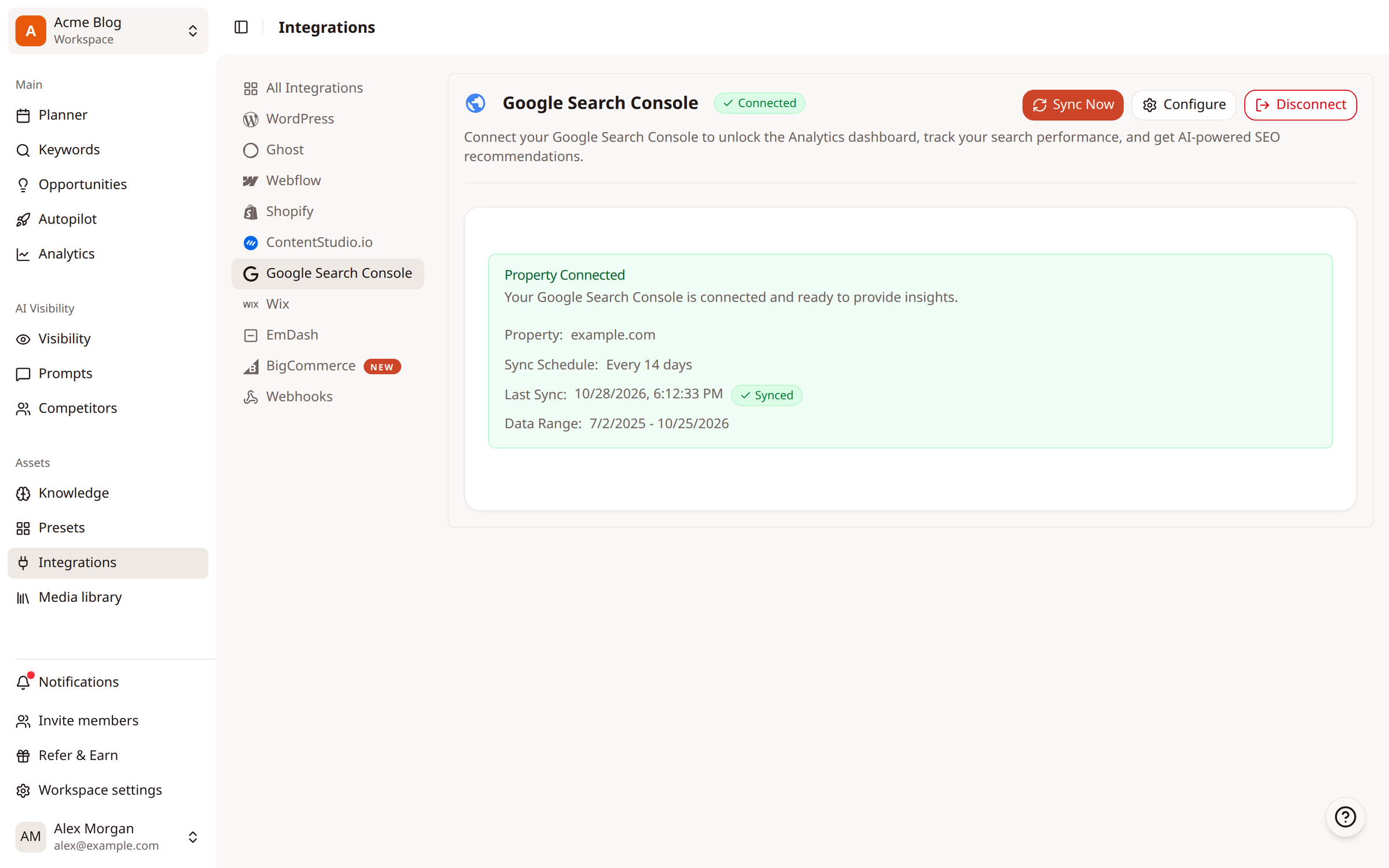
From here you can:
Click Sync Now to refresh your data at any time.
Click Configure to change the site or the sync frequency.
Click Disconnect to stop syncing.
Step 7: See your data
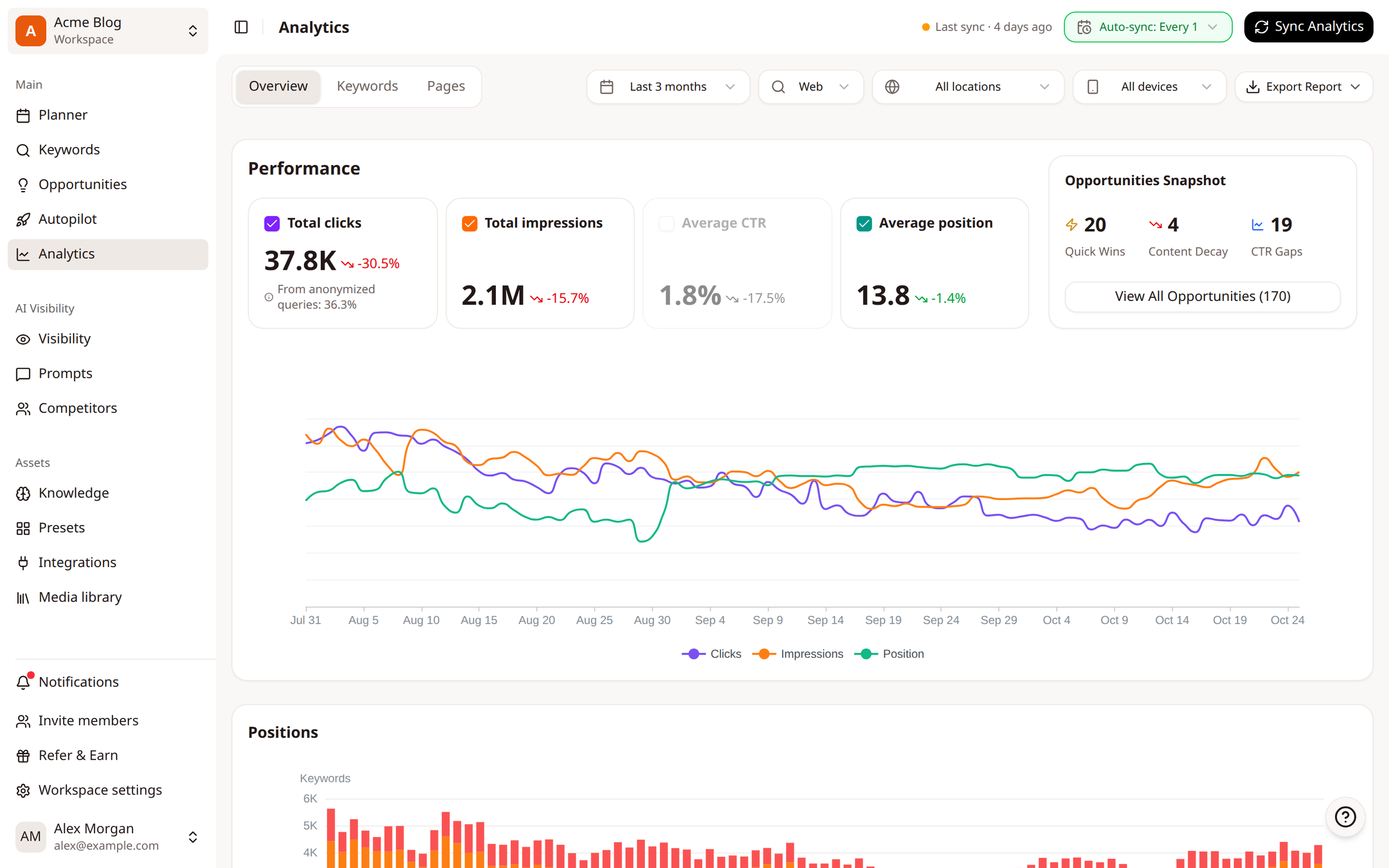
Open Analytics in the sidebar to see clicks, impressions, CTR and average position, and Opportunities for keywords and pages worth improving.
If something goes wrong
"Failed to load Google Search Console properties": the permission in step 3 wasn't allowed. Click Disconnect, connect again, and keep the box checked.
Your site isn't in the list: you signed in with a Google account that doesn't have access to it. Disconnect and connect with the right account.
Save Settings is greyed out, or you see Limited Permissions: ask the site's owner in Google Search Console to give you Full User access.
The card says Upgrade to Access: your plan doesn't include Google Search Console. Upgrade to Growth or higher from Workspace settings > Billing.
Related
Was this article helpful?