
Approve Autopilot drafts
When Autopilot finishes writing an article that needs your approval, it waits in the Review queue. Read it, edit it if you like, and approve it to schedule it to your site.
Before you start: to publish from Autopilot, connect a site in Integrations. Without one, you can still read and edit drafts, then publish them yourself from the editor.
Step 1: Open the Review queue
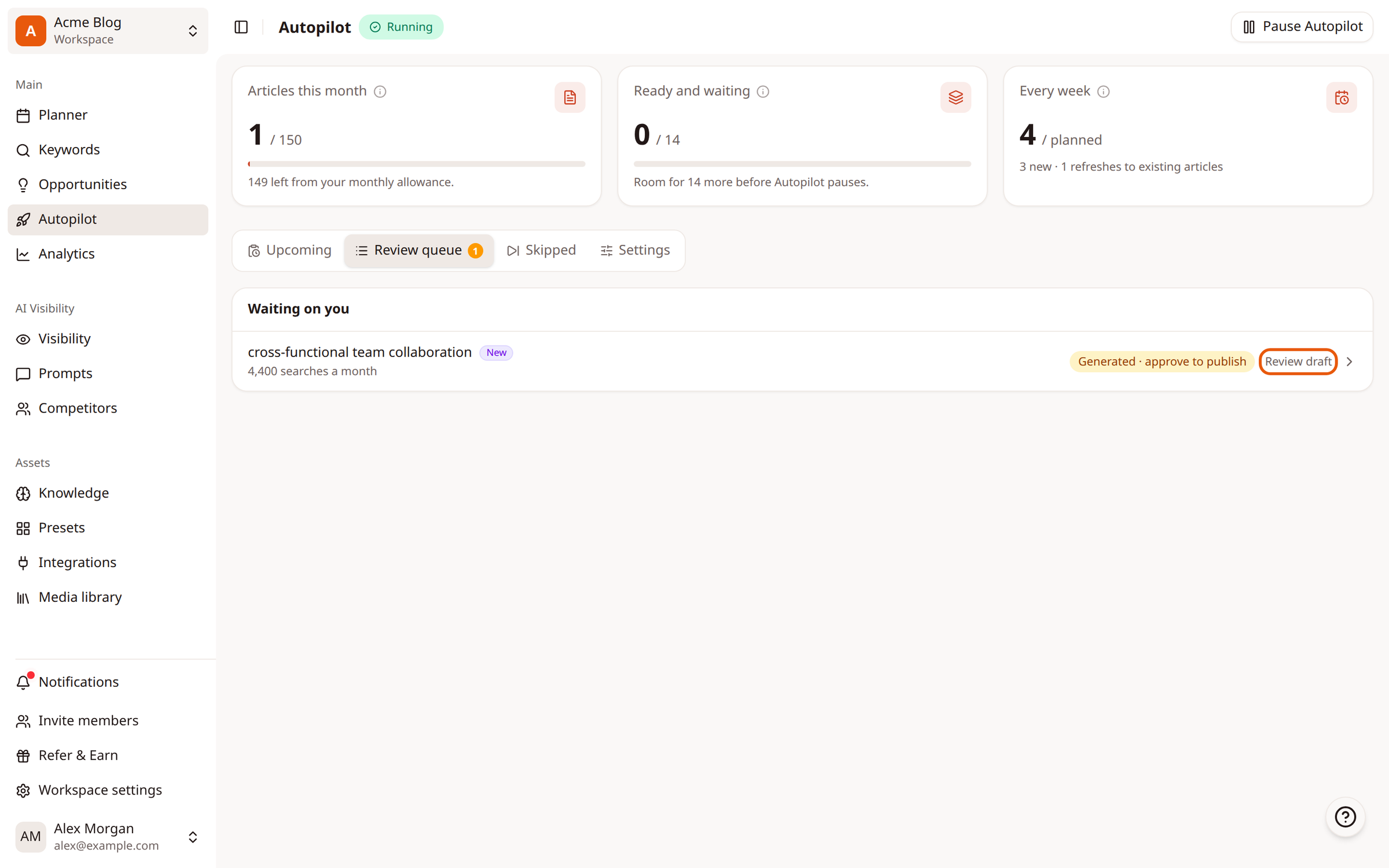
Open Autopilot and click the Review queue tab. The number on the tab shows how many drafts are waiting. Click Review draft next to the one you want.
Step 2: Check the draft details
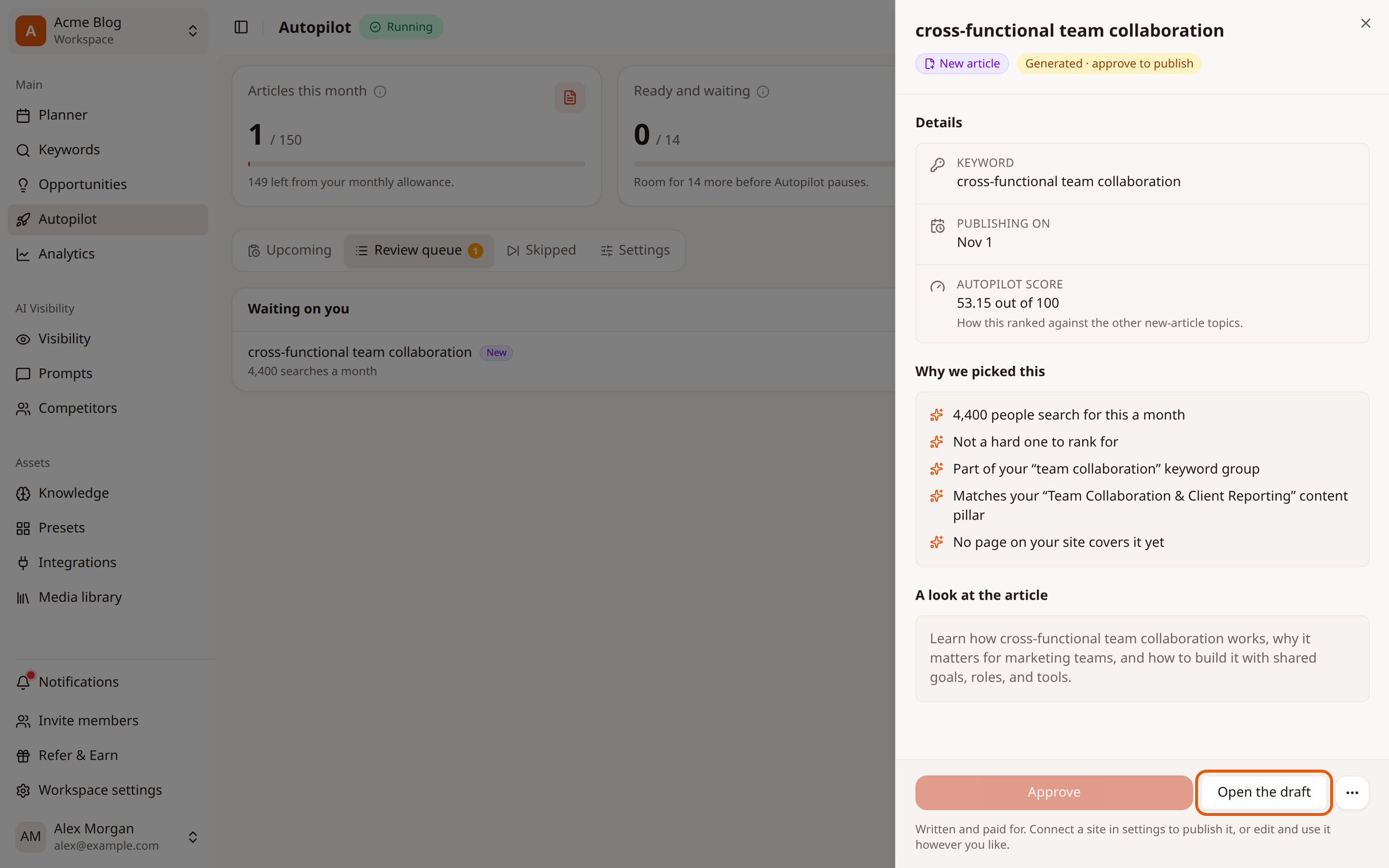
The panel shows the keyword, the publishing date, why Autopilot picked it, and A look at the article. Click Open the draft to read the full article.
Step 3: Edit and approve it in the editor
The draft opens in the editor with an Autopilot wrote this bar at the bottom. Make any edits, then click Approve & schedule. Autopilot publishes it to your site on its publishing date.
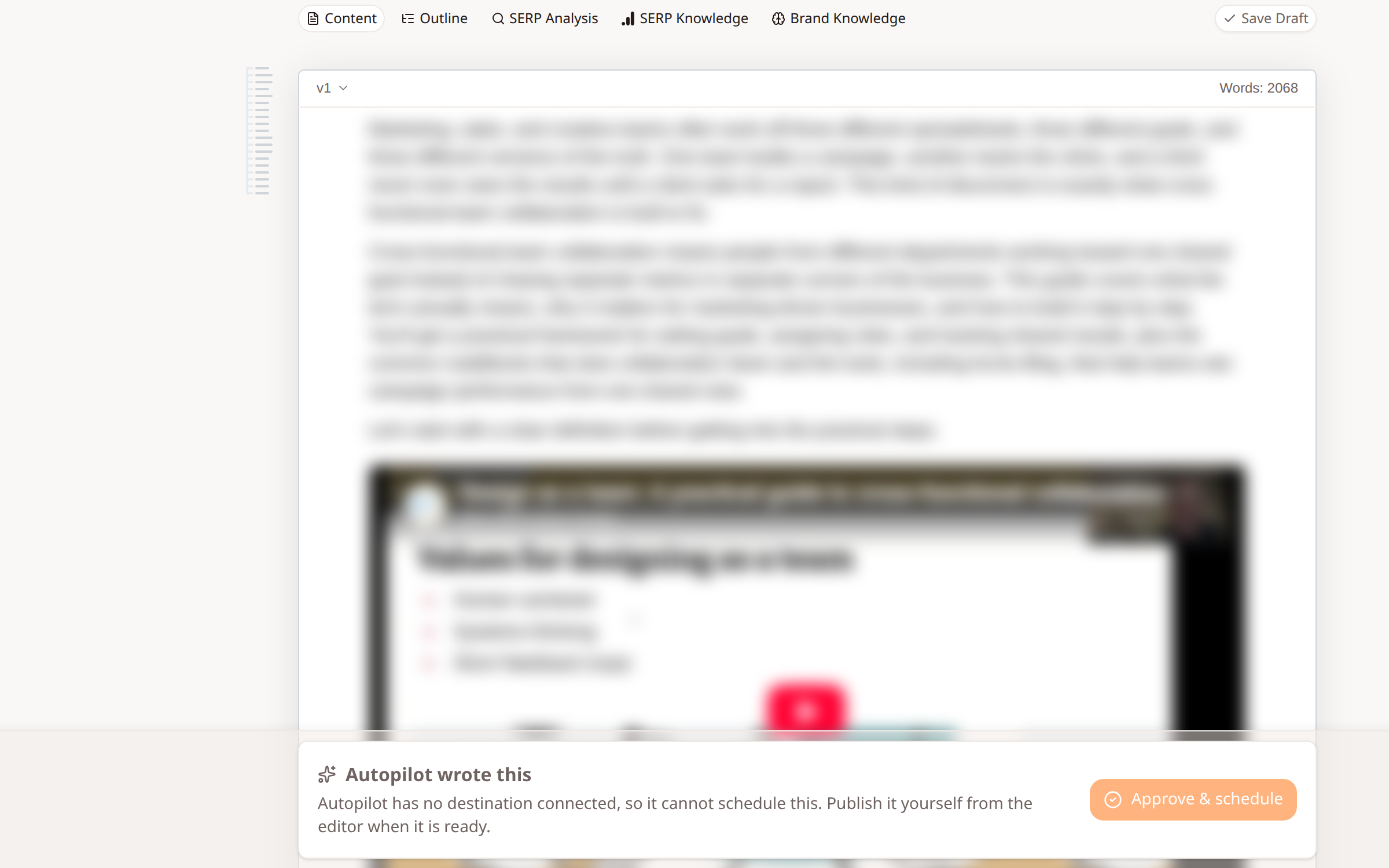
If no site is connected, the bar says Autopilot can't schedule it. Publish it yourself from the editor, or connect a site first.
Good to know
You can also click Approve in the draft panel without opening the editor.
Drafts waiting for approval count towards Ready and waiting. When that fills up, Autopilot pauses writing until you approve or clear some.
Refreshes of existing articles show Autopilot refreshed this instead.
Related
Was this article helpful?