
Set up Autopilot
Set up Autopilot once, and it plans, writes and publishes articles for your blog every week. Setup takes about two minutes, and you can change anything later.
Before you start: you need the Growth plan or higher. For the best results, connect your site in Integrations and connect Google Search Console first. Without Search Console, Autopilot writes new articles only and never refreshes existing ones.
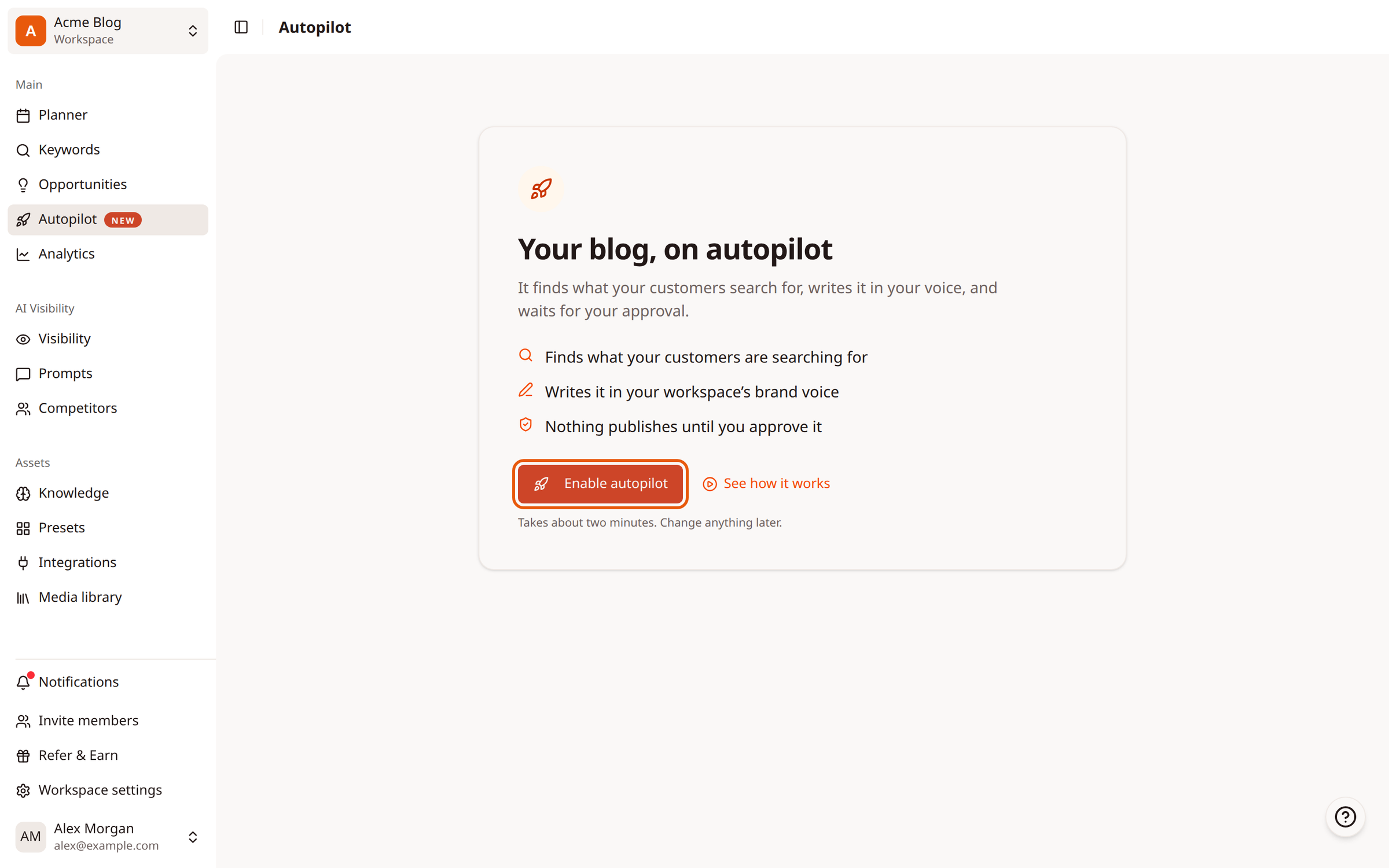
Step 1: Open Autopilot and click Enable autopilot
In the sidebar, click Autopilot, then click Enable autopilot.
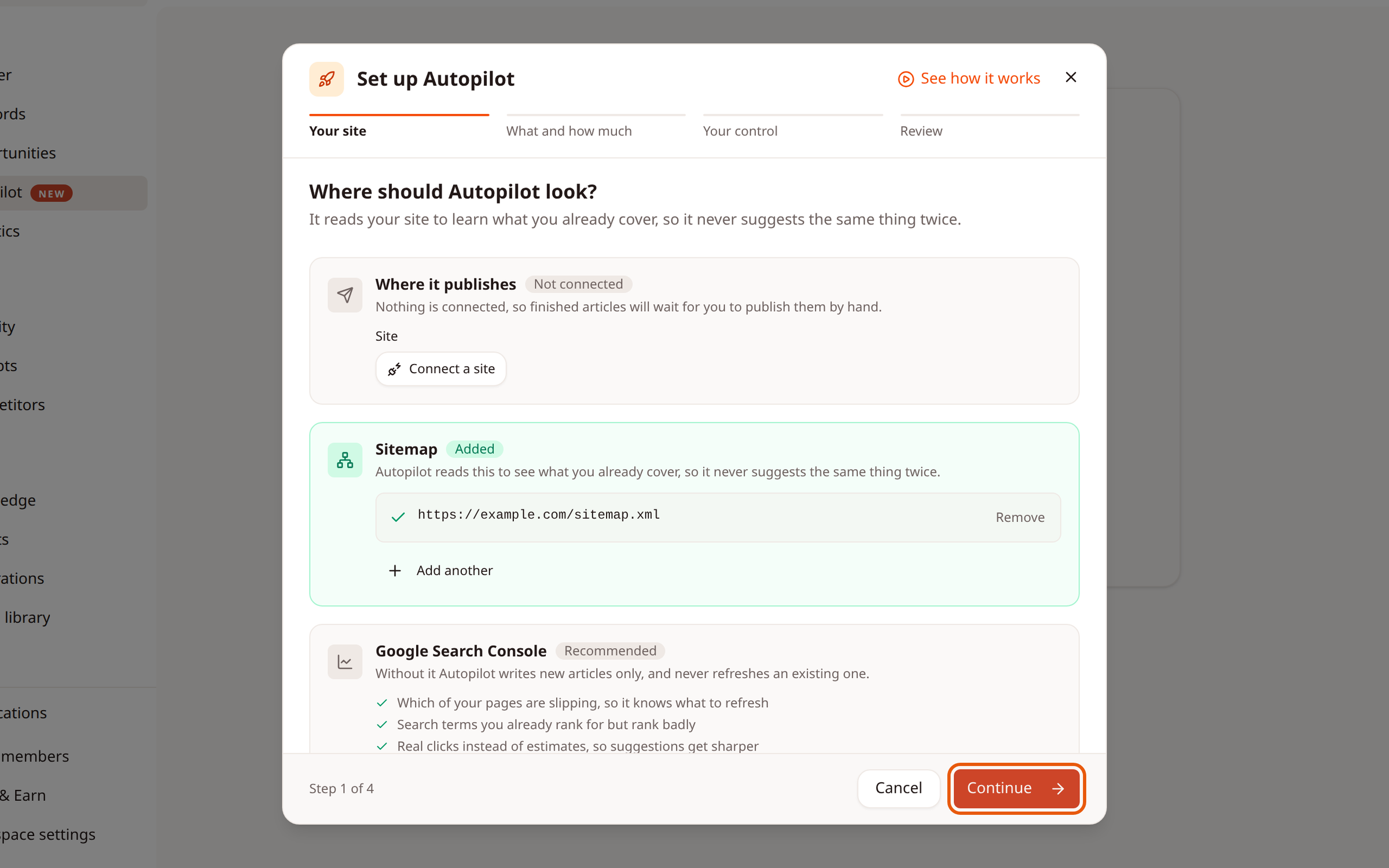
Step 2: Check where Autopilot looks
The Your site step shows three things:
Where it publishes: the site finished articles go to. If nothing is connected, articles wait for you to publish them by hand. Click Connect a site to add one.
Sitemap: Autopilot reads your sitemap so it never suggests something you already cover. It's usually found for you. Click Add another if you have more than one.
Google Search Console: recommended, so Autopilot can find pages worth refreshing. Click Connect Search Console if it isn't connected yet.
Click Continue.
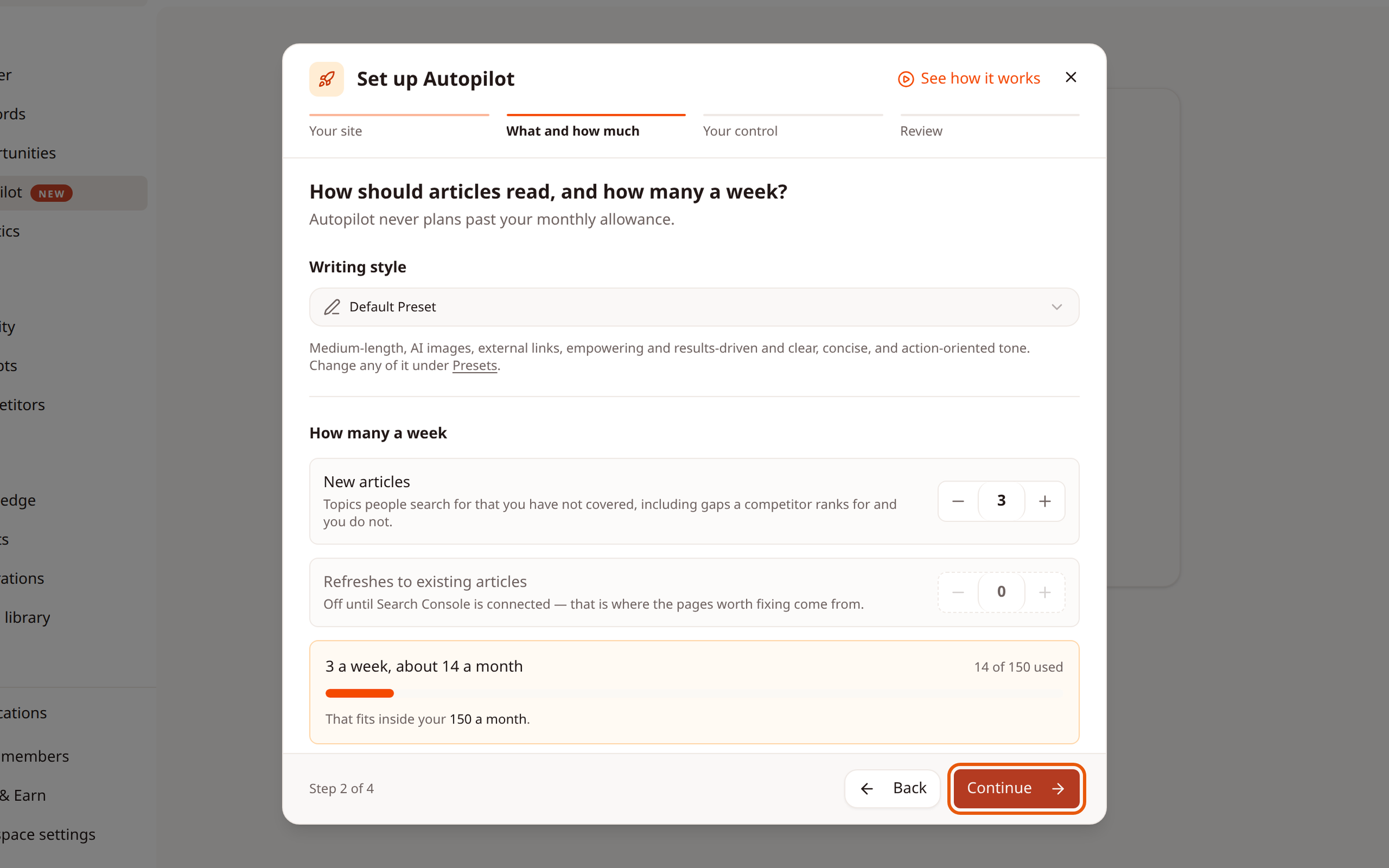
Step 3: Choose how articles read and how many a week
Under Writing style, pick the preset Autopilot writes with. It sets length, tone, images and links.
Under How many a week, use - and + to set New articles and Refreshes to existing articles.
Check the summary, for example "3 a week, about 14 a month", and how much of your monthly allowance it uses. Autopilot never plans past your monthly allowance.
Click Continue.
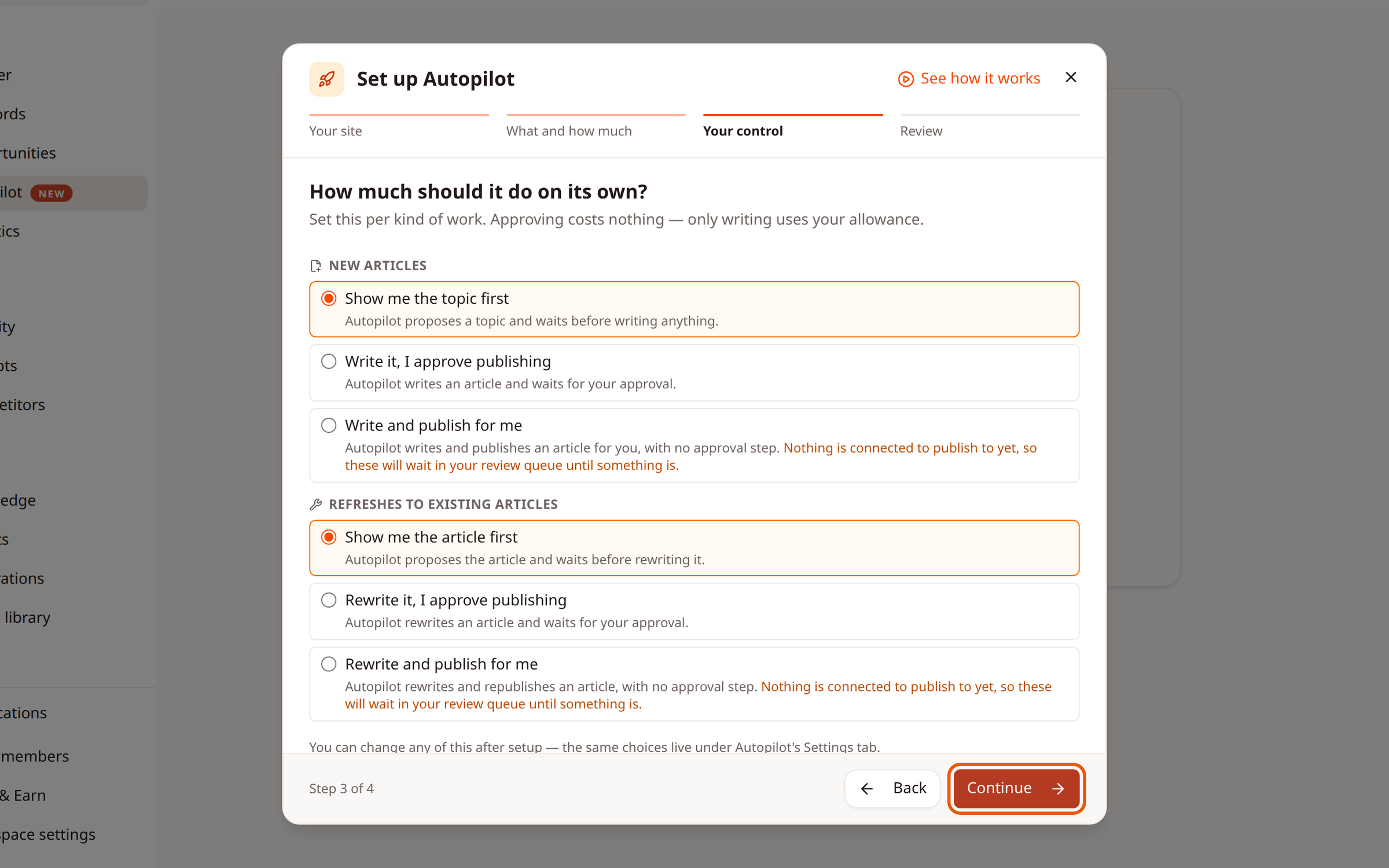
Step 4: Choose how much Autopilot does on its own
For New articles and for Refreshes to existing articles, pick one option:
Show me the topic first (or Show me the article first): Autopilot waits for you before writing anything.
Write it, I approve publishing (or Rewrite it, I approve publishing): Autopilot writes it, then waits for your approval.
Write and publish for me (or Rewrite and publish for me): Autopilot writes and publishes with no approval step. This needs a connected site.
Approving costs nothing. Only writing an article uses your allowance. Click Continue.
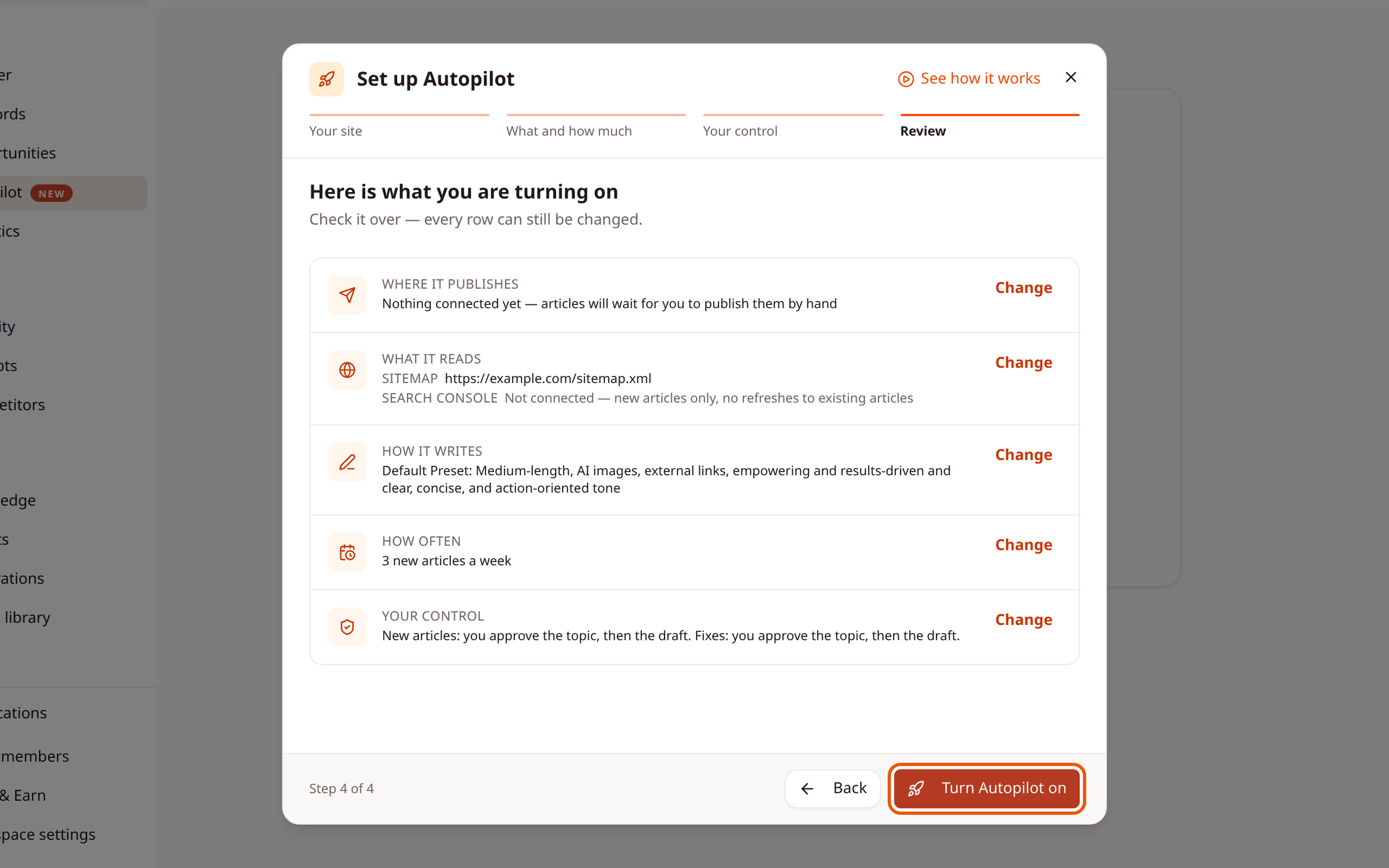
Step 5: Review and turn Autopilot on
Check each row: Where it publishes, What it reads, How it writes, How often and Your control. Click Change next to any row to go back and edit it. Then click Turn Autopilot on.
Step 6: Check that Autopilot is running
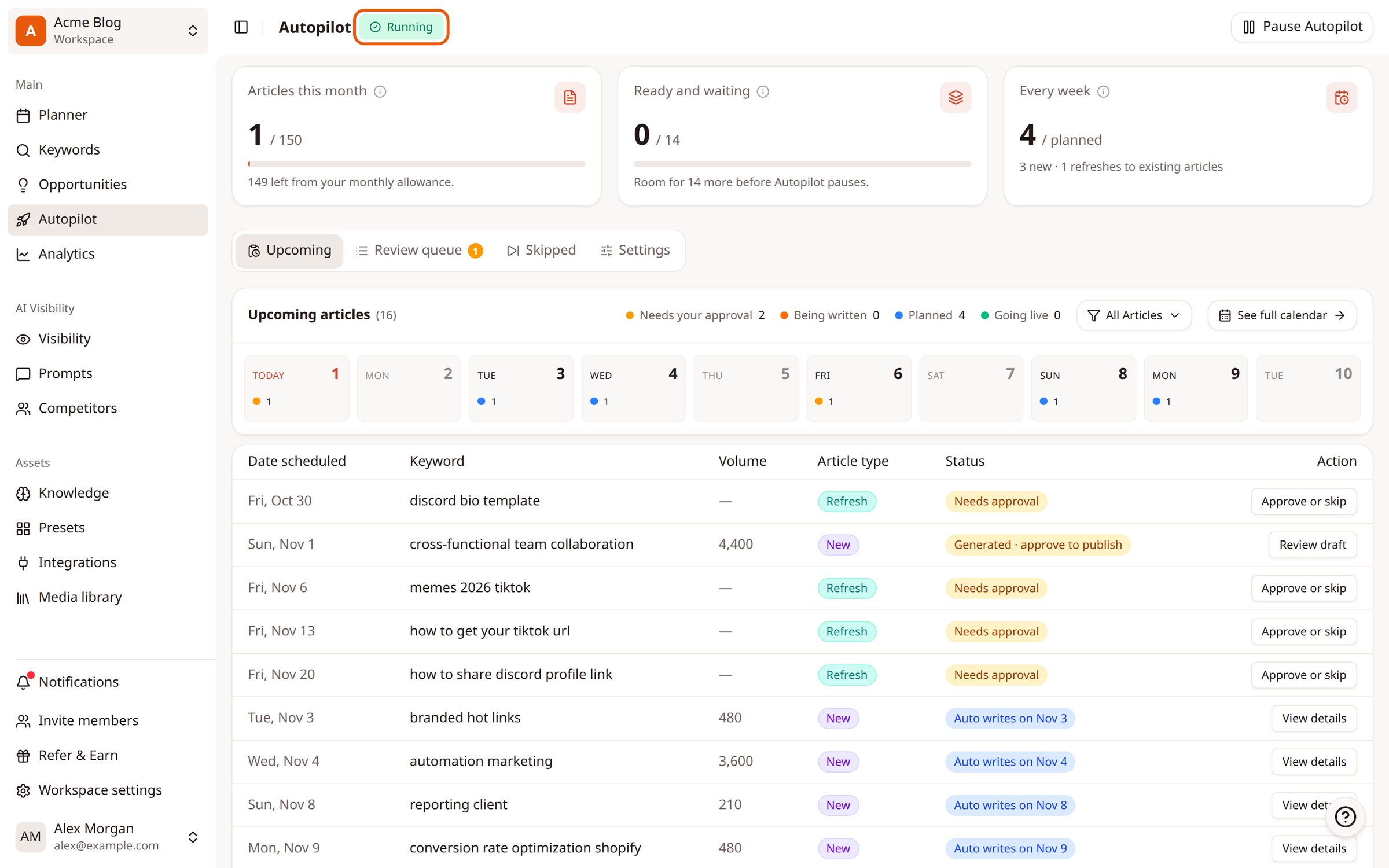
The Autopilot page now shows Running. Autopilot starts looking for what to write about, and your first topics appear under Upcoming. The first plan can take a little longer than later ones.
Related
Was this article helpful?