
Change Autopilot settings, or pause it
Change how Autopilot writes, where it publishes and how many articles it plans each week, or pause it and turn it back on.
Before you start: Autopilot is set up. See Set up Autopilot.
Change writing style and where it publishes
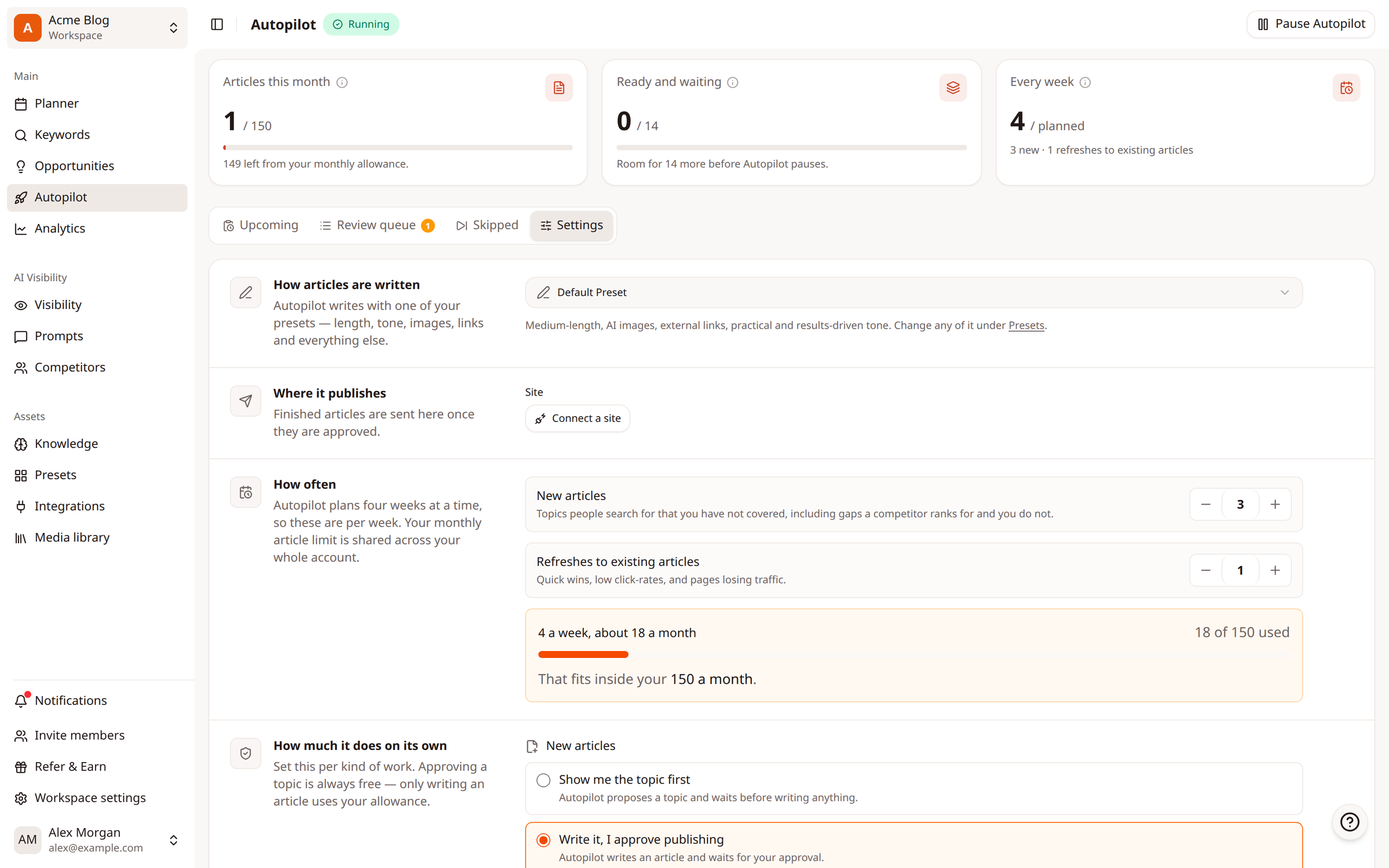
Open Autopilot and click the Settings tab.
Under How articles are written, pick the Writing style preset Autopilot writes with. To change length, tone, images or links, edit that preset under Presets.
Under Where it publishes, choose the Site finished articles go to once they're approved, or click Connect a site.
Click Save changes at the bottom of the Settings tab.
Change how many articles it plans
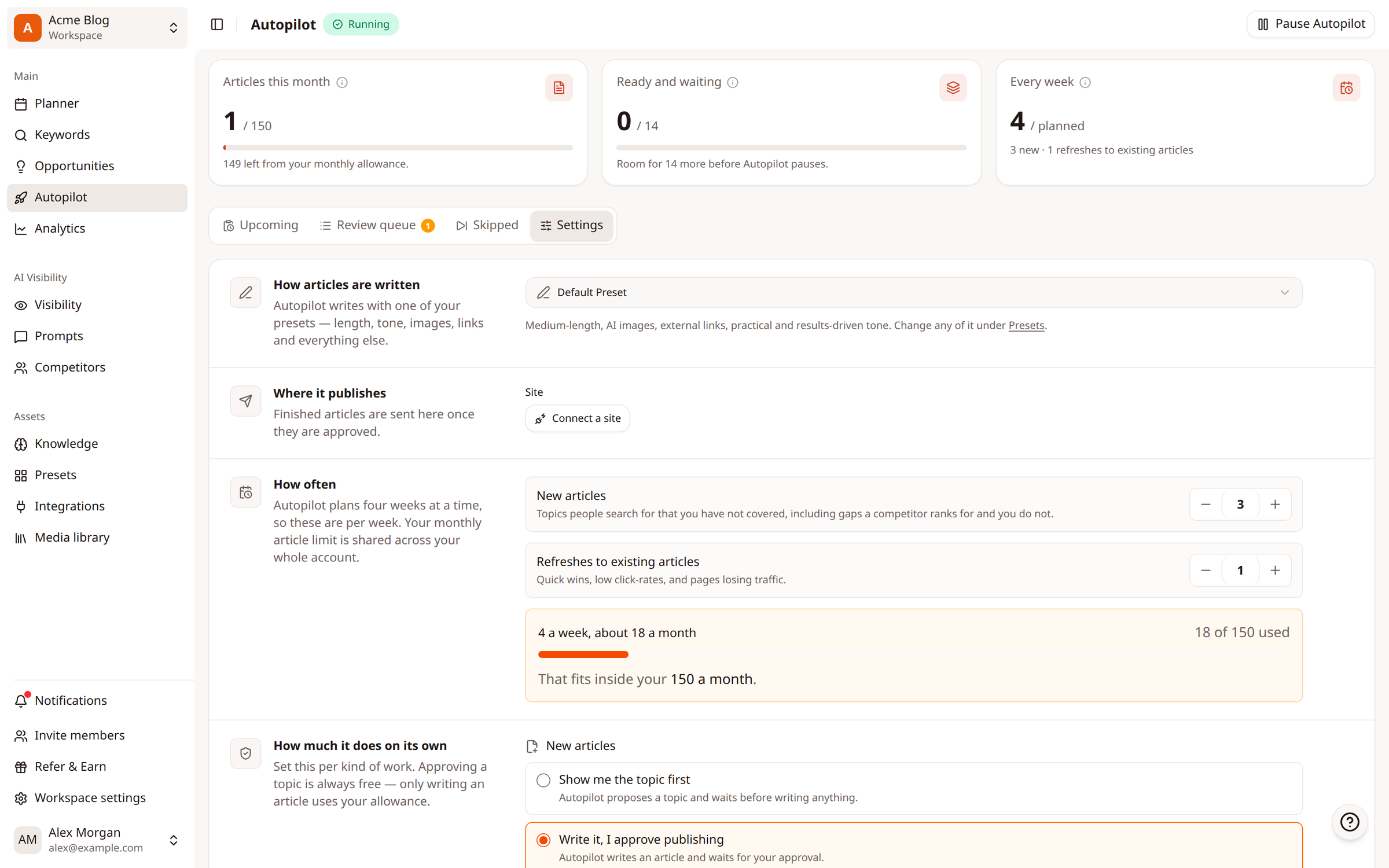
Under How often, use - and + to set New articles and Refreshes to existing articles per week.
Check the summary: it shows the total per week and month, and how much of your monthly allowance that uses.
Click Save changes.
To change how much Autopilot does without asking you, see Choose how much Autopilot does on its own.
Pause Autopilot
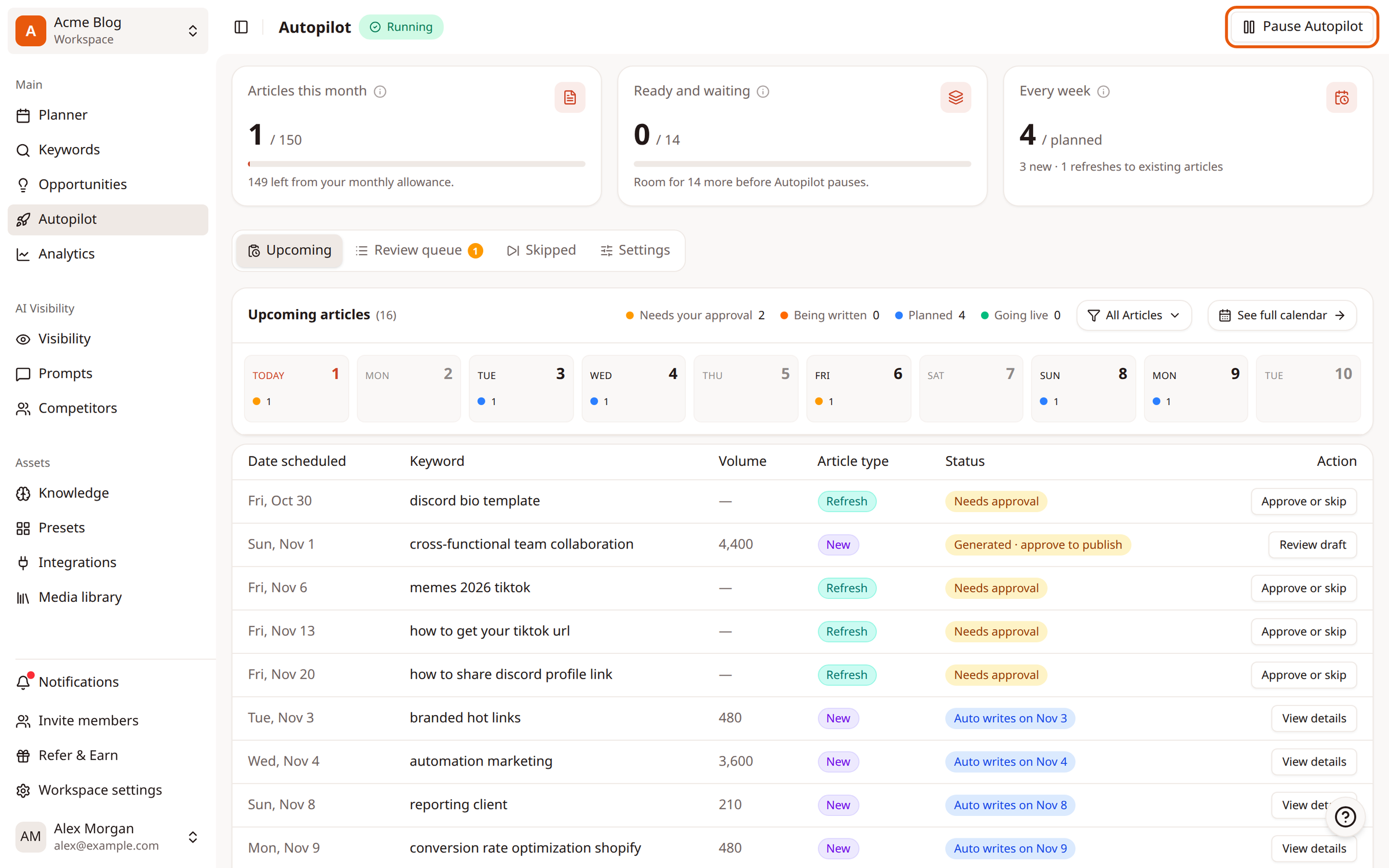
Click Pause Autopilot at the top right of the Autopilot page. Autopilot stops its schedule, so it plans nothing new. Articles already being written keep going.
Turn Autopilot back on
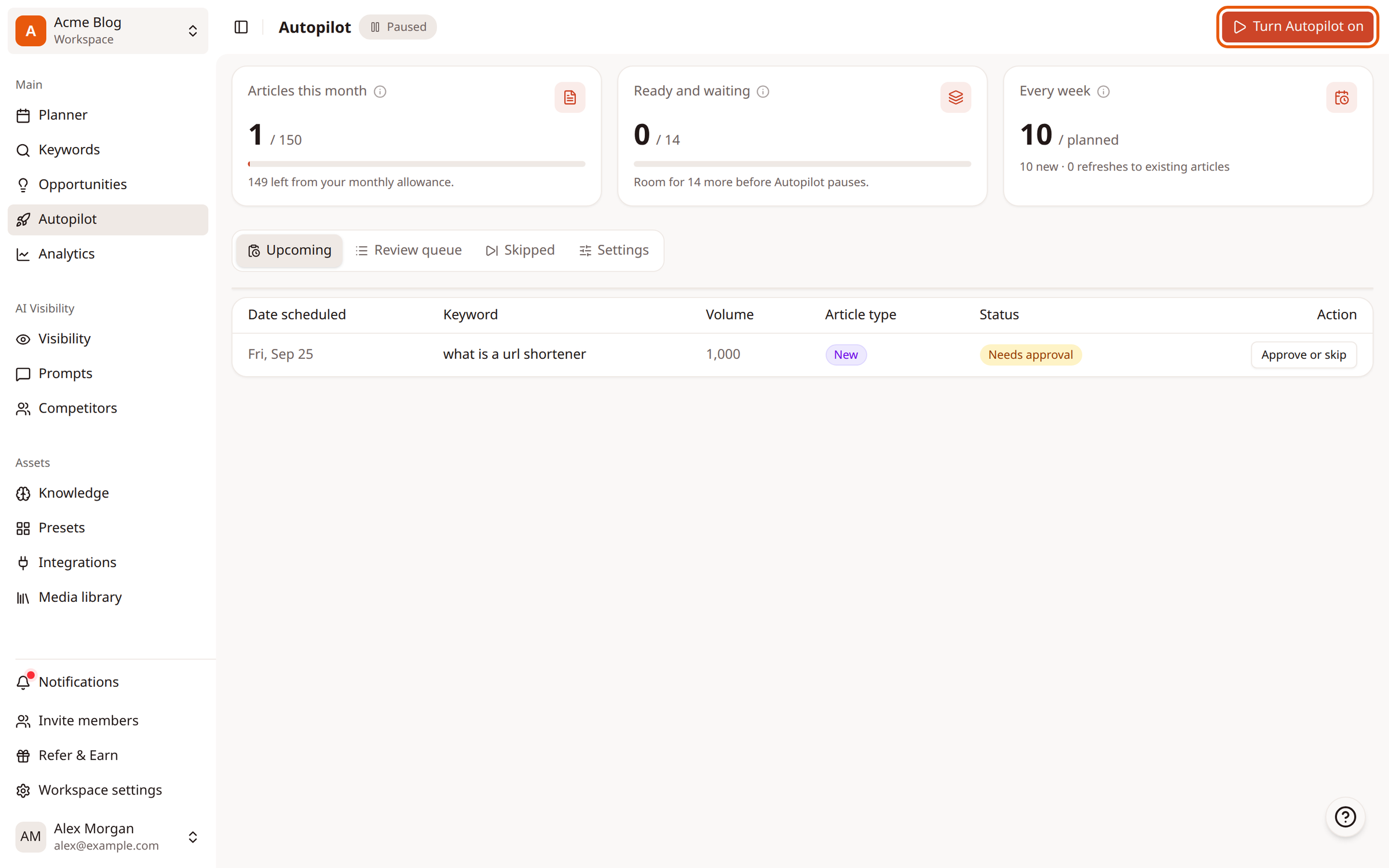
When Autopilot is paused, the status shows Paused. Click Turn Autopilot on to start it again.
Related
Was this article helpful?