
Troubleshoot Autopilot
Most Autopilot problems come down to its status, the cards at the top of the page, or a missing connection. Find your problem below.
Autopilot isn't planning anything new
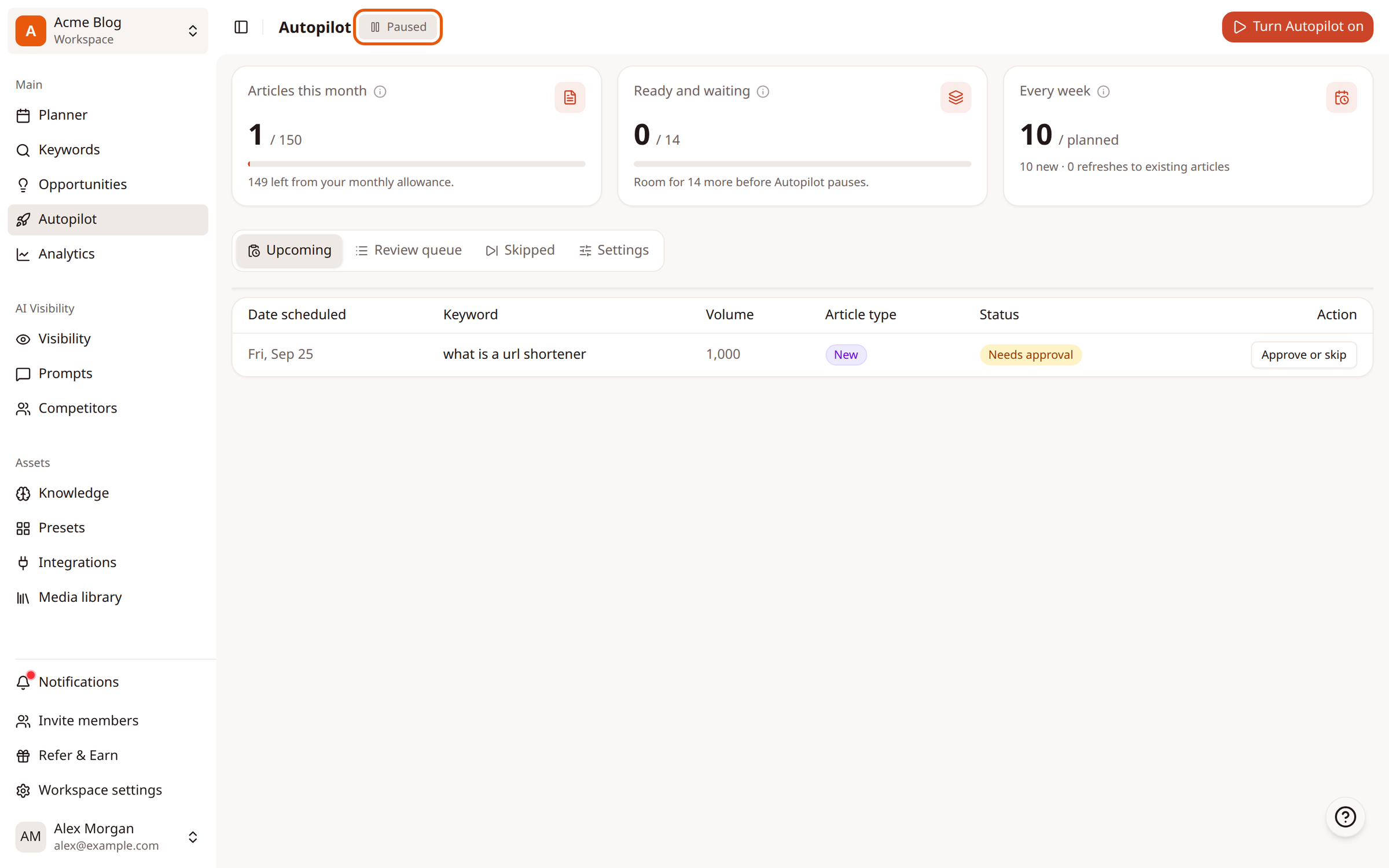
Check the status next to Autopilot at the top of the page. If it says Paused, click Turn Autopilot on.
Autopilot stopped writing articles
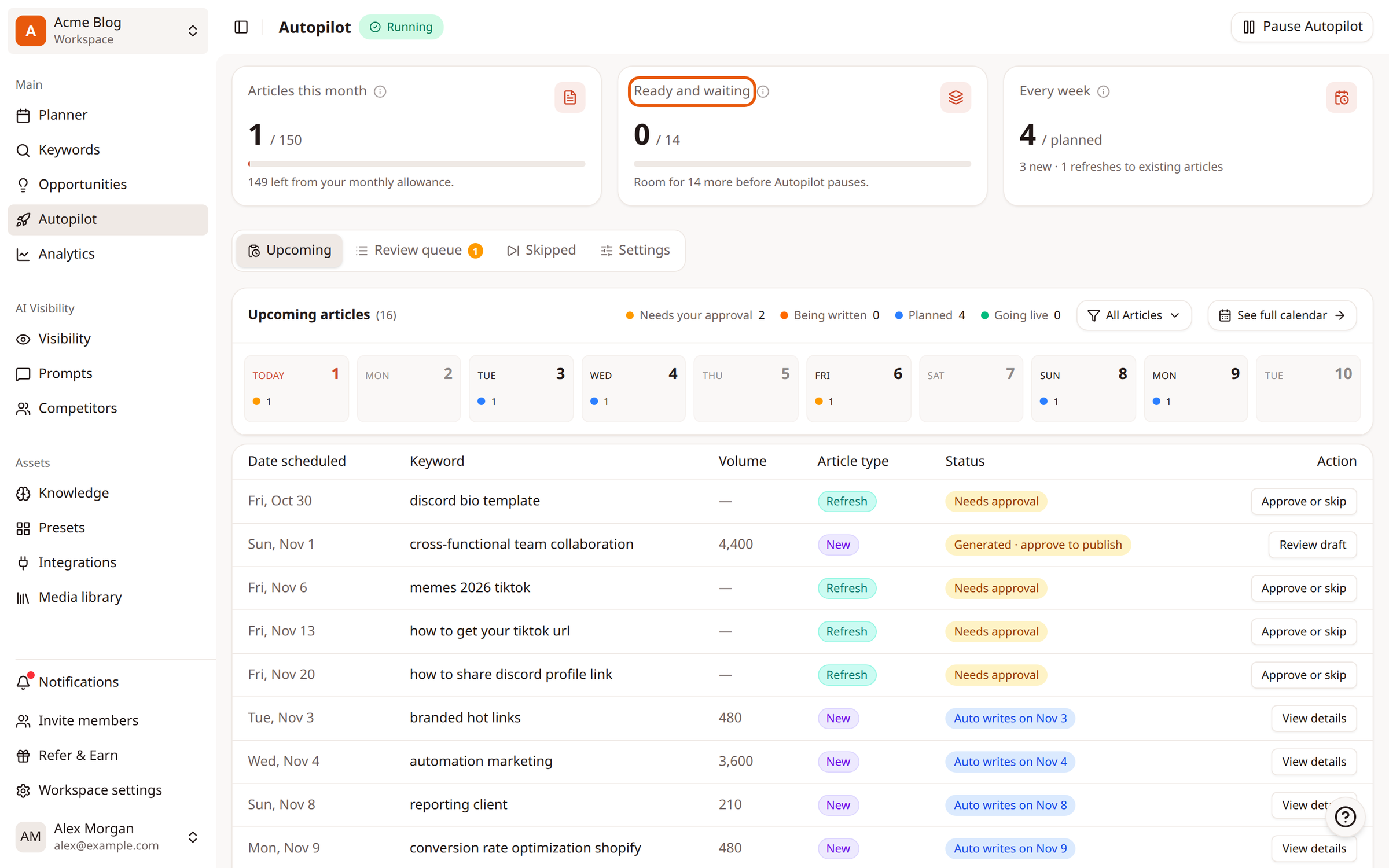
Check the Ready and waiting card. It counts articles that are written but not yet published. When it's full, Autopilot stops writing so work doesn't pile up faster than you can review it.
To fix it, open the Review queue and approve or clear drafts. Publishing frees the space back up. See Approve Autopilot drafts.
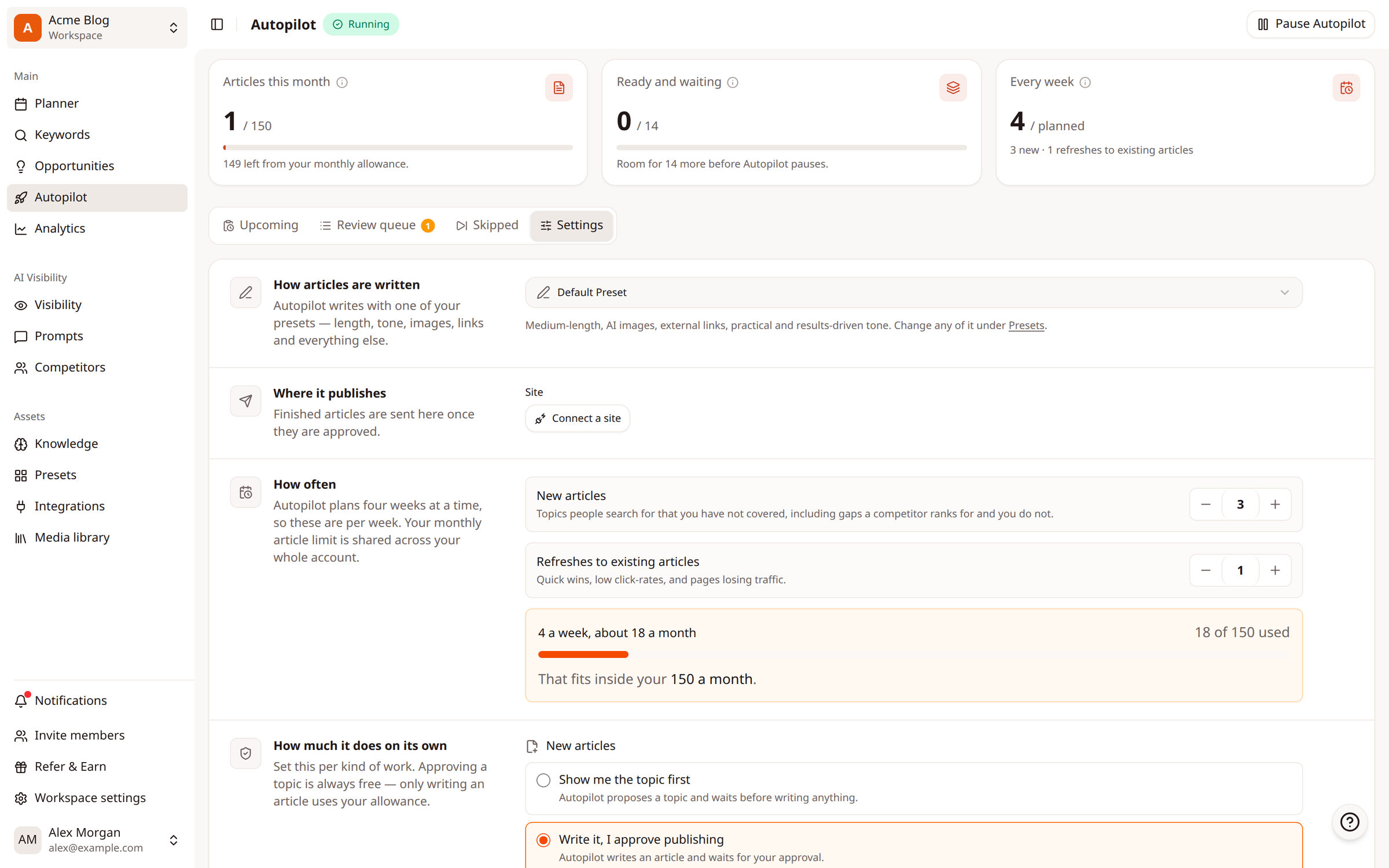
Also check Articles this month. It shows how much of your monthly allowance is used. Autopilot never writes past it. To make your plan fit, lower How often in Settings, or upgrade your plan from Workspace settings > Billing.
Approved articles aren't publishing to my site
Check Where it publishes in Settings. If it shows Connect a site, no site is connected, so finished articles wait in your Review queue. Click Connect a site, then approve your drafts.
Autopilot never suggests refreshes
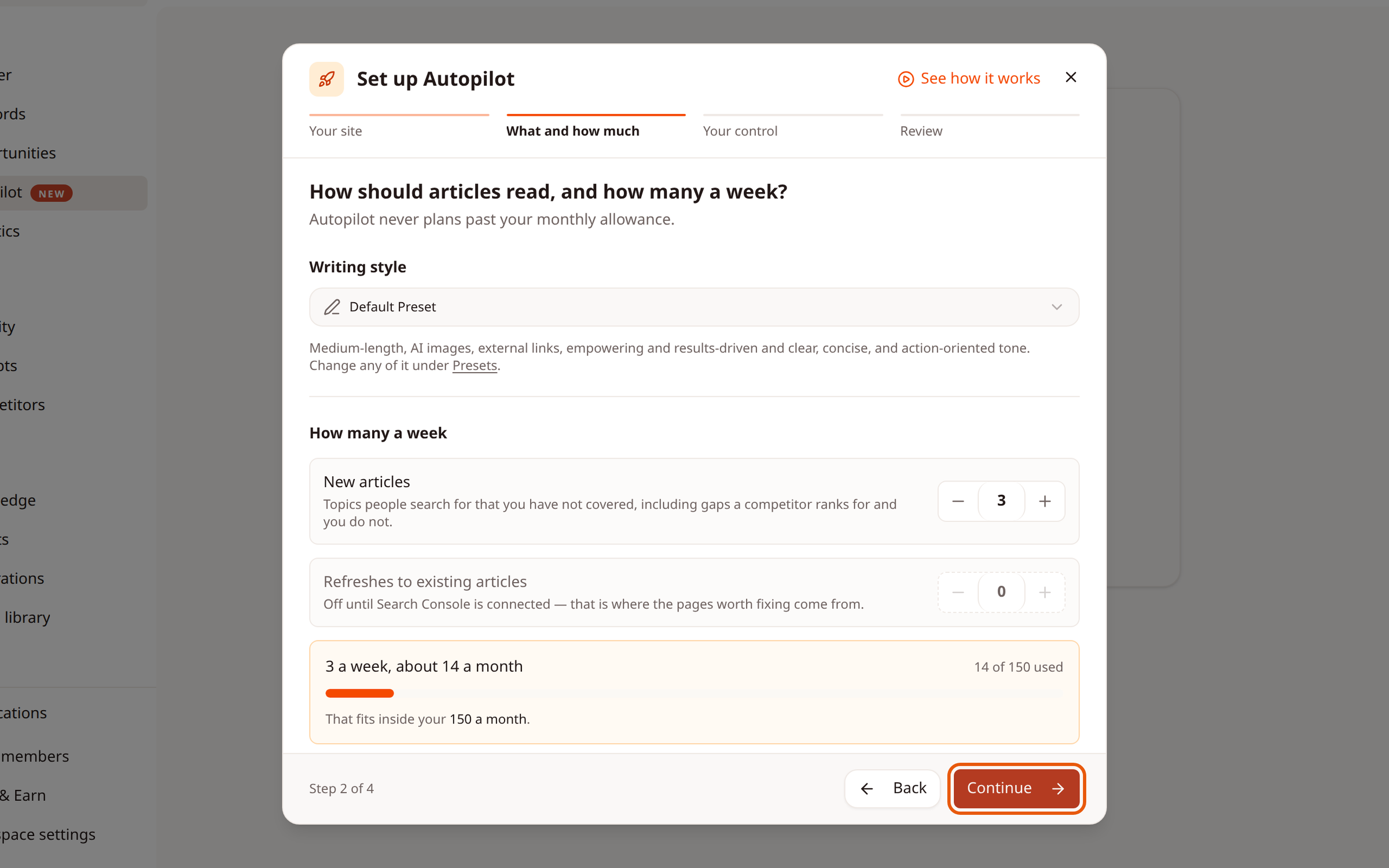
Refreshes come from Google Search Console. Without it, Refreshes to existing articles stays off. Connect Google Search Console, then set how many refreshes you want under How often in Settings.
A topic doesn't fit my blog
Open it and click Skip, or click ⋯ and choose Replace keyword to use your own keyword. See Review and approve Autopilot topics.
Still stuck?
Contact ContentPen support and tell us what the Autopilot page shows. A screenshot helps.
Related
Was this article helpful?