
Review and approve Autopilot topics
Autopilot suggests topics for your blog and tells you why it picked each one. Approve the ones you want, skip the rest, or change the date or keyword. Approving a topic is free: only writing an article uses your allowance.
Before you start: Autopilot is set up and running. See Set up Autopilot.
Step 1: Open Upcoming and find topics that need you
Open Autopilot. The Upcoming tab lists every planned article with its date, keyword, search volume, article type and status. Topics marked Needs approval are waiting for you.
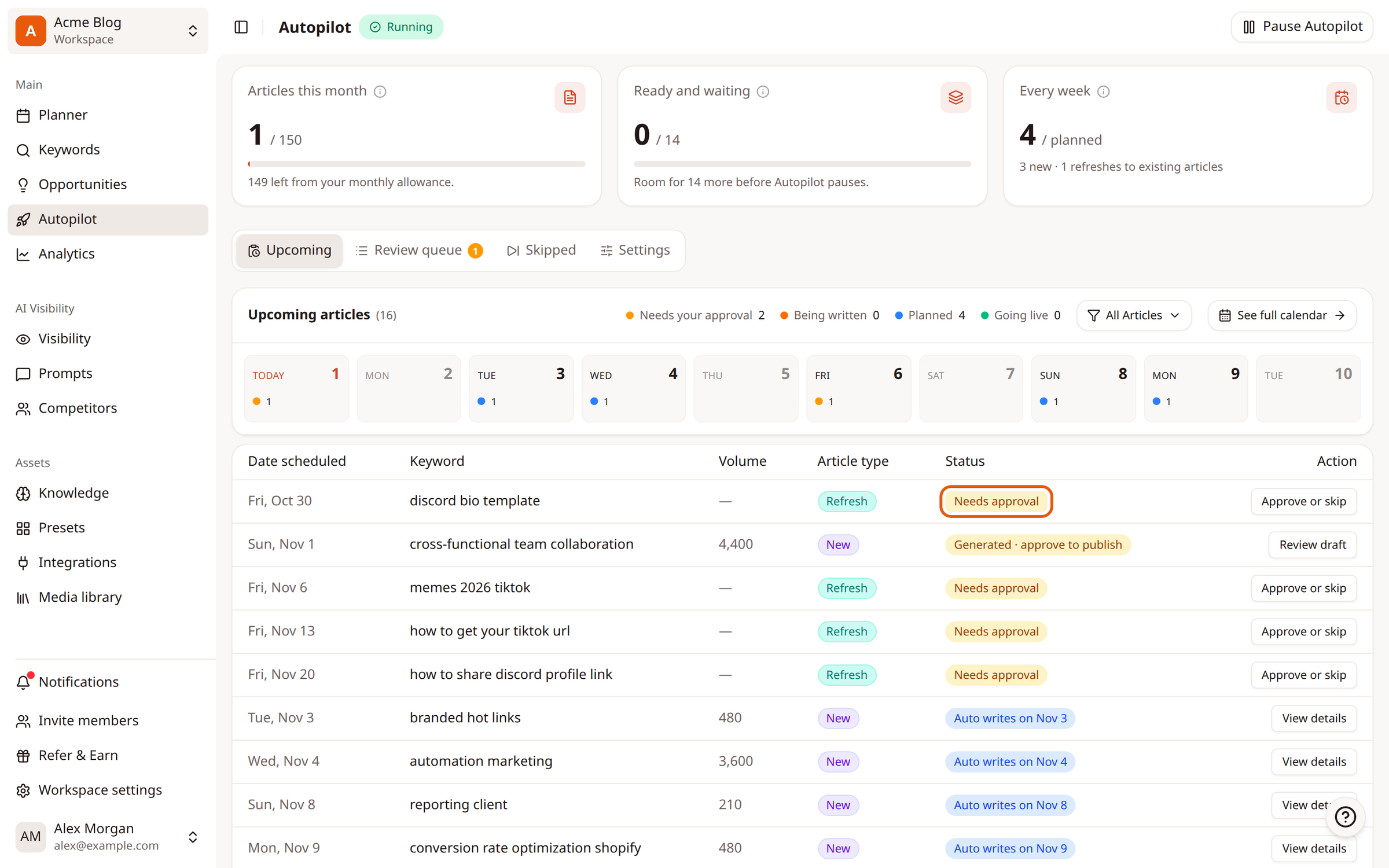
What each status means:
Status | What happens next |
|---|---|
Needs approval | Waiting for you to approve or skip it |
Auto writes on a date | Autopilot writes it on that date, then waits for your review |
Auto writes and publishes on a date | Autopilot writes and publishes it on that date |
Generating | Being written right now |
Generated · approve to publish | Written, and waiting in your Review queue |
Goes live on a date | Approved, and scheduled to publish |
Step 2: Open a topic to see why Autopilot picked it
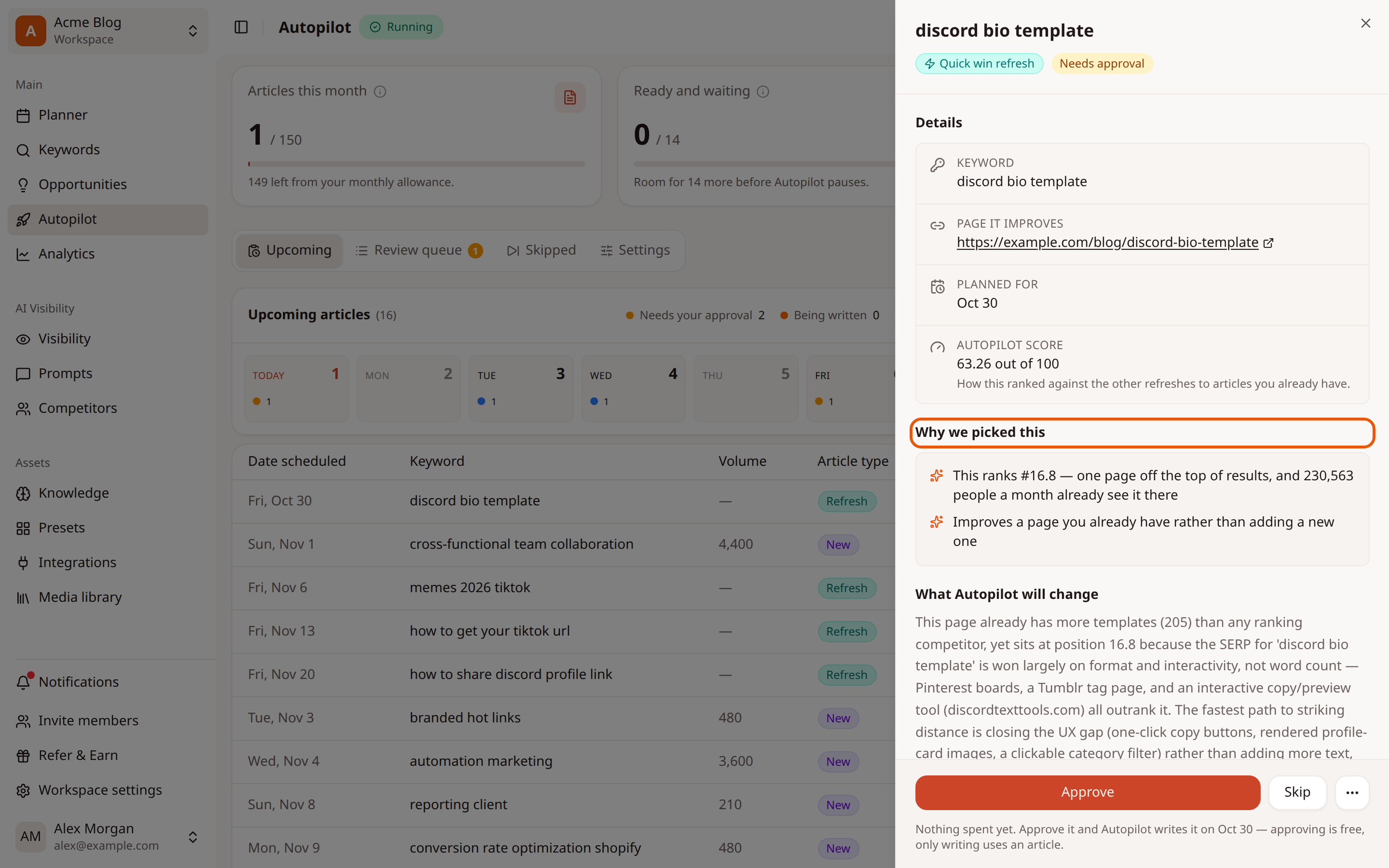
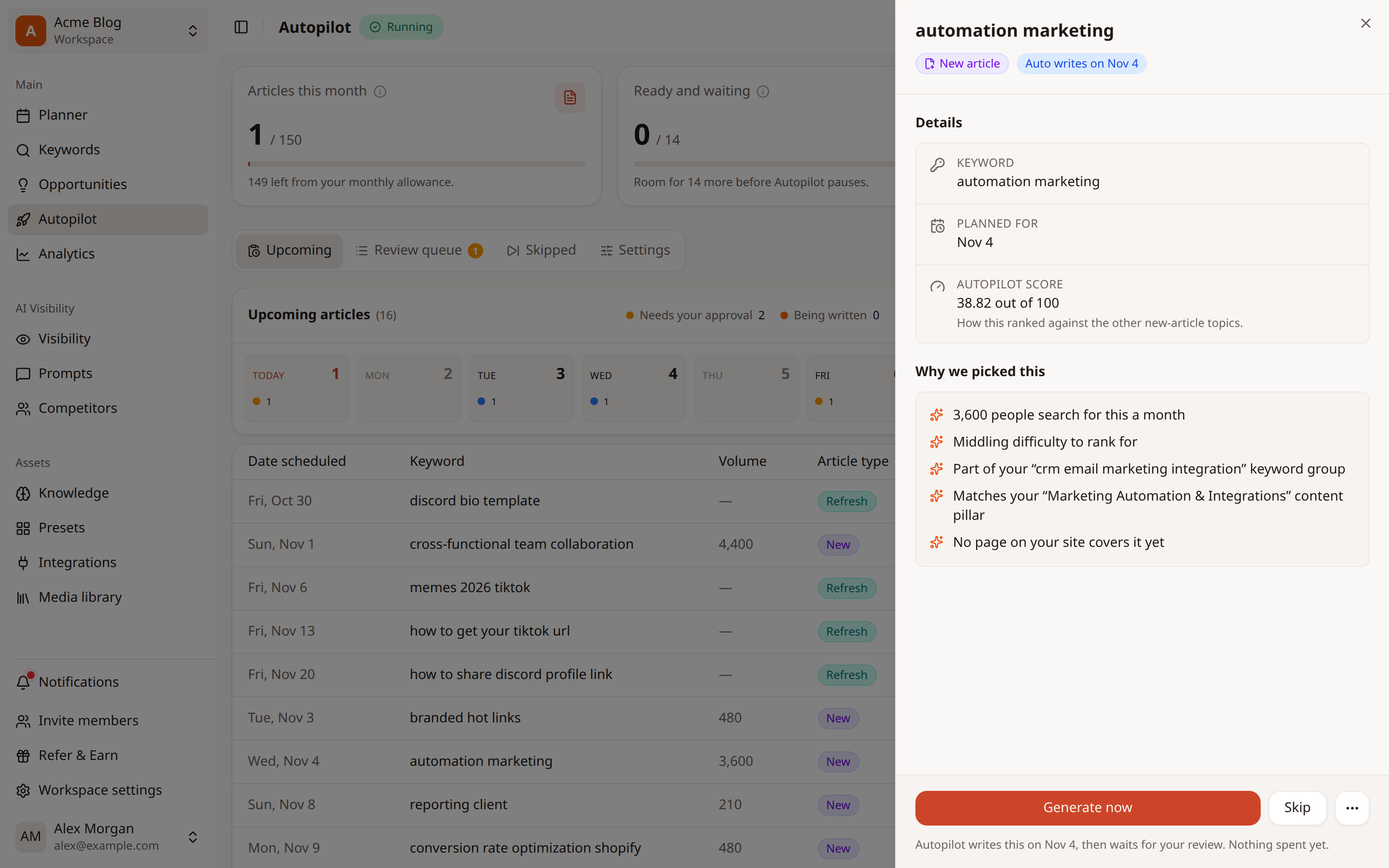
Click a topic. The panel shows the keyword, the page it improves (for refreshes), the planned date, its Autopilot score, and Why we picked this.
Step 3: Approve or skip it
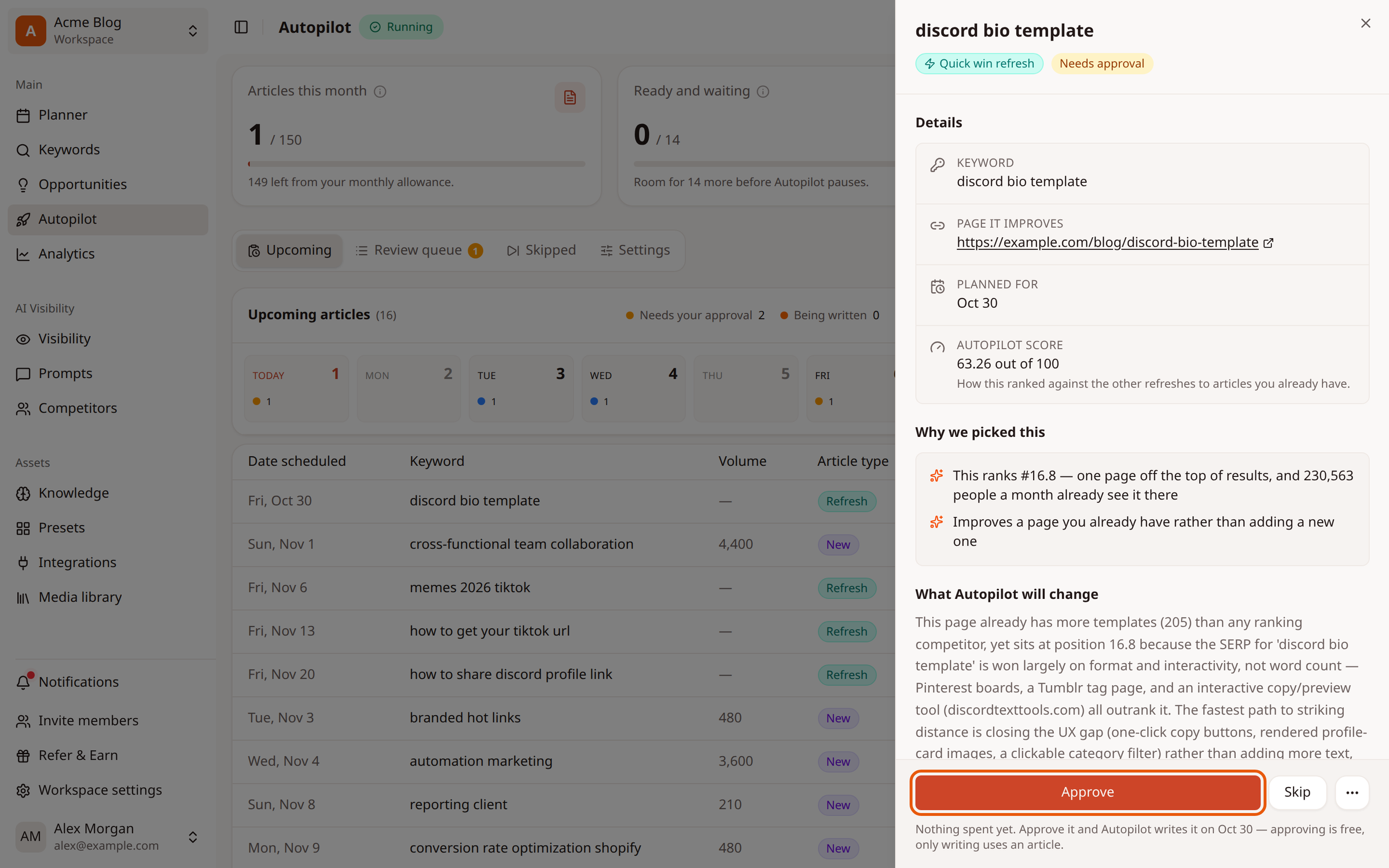
Click Approve to keep it. Autopilot writes it on the planned date.
Click Skip if you don't want it. It moves to the Skipped tab.
Step 4: Change the date or the keyword
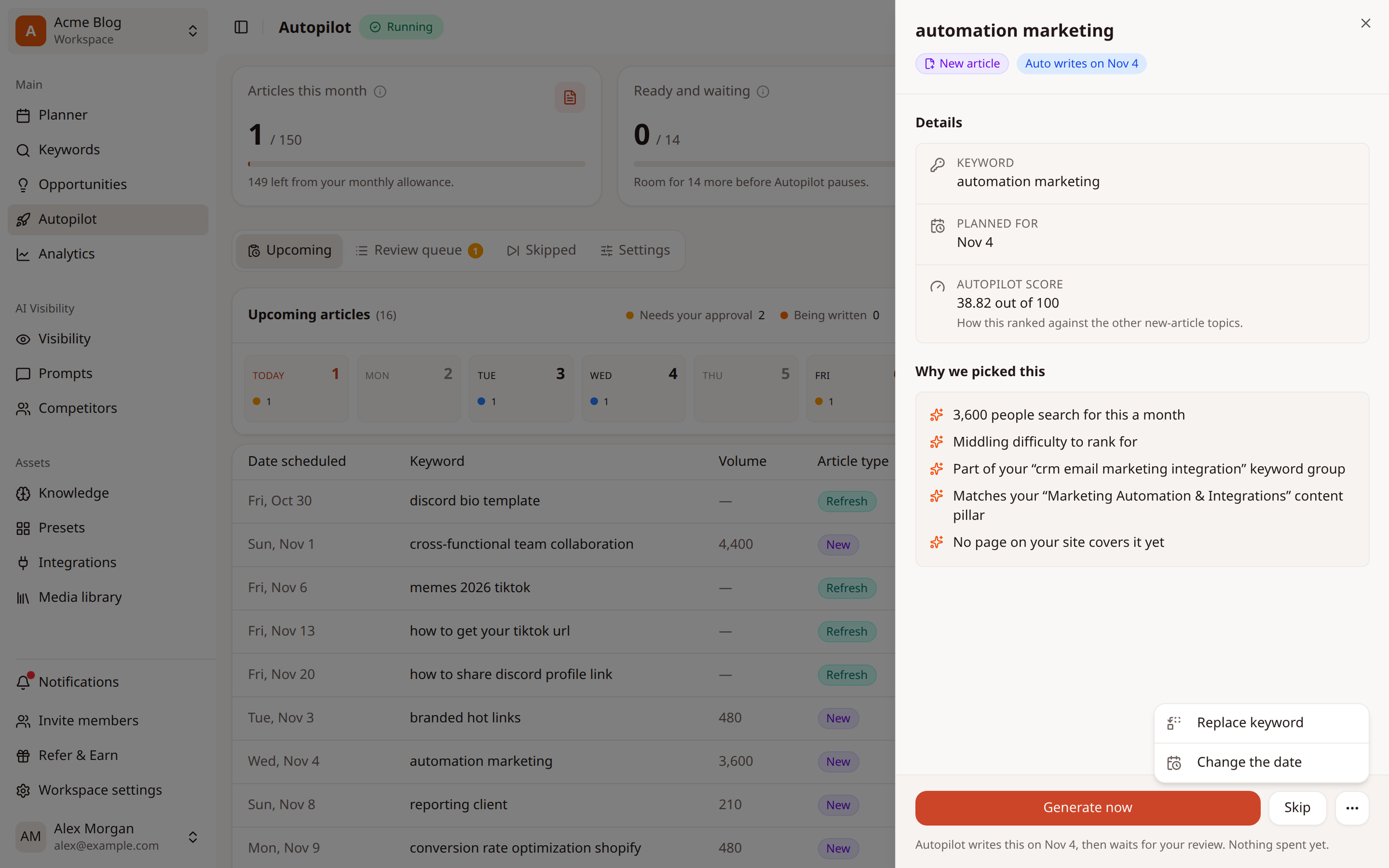
Click ⋯ (More actions) at the bottom of the panel:
Change the date to move the topic to another day.
Replace keyword to swap a new-article topic for a keyword of your own.
Step 5: Write a planned topic early
Topics marked Auto writes on a date will be written automatically on that date. Open one and click Generate now to have it written right away instead of waiting. Writing uses an article from your allowance.
Step 6: Bring back a skipped topic
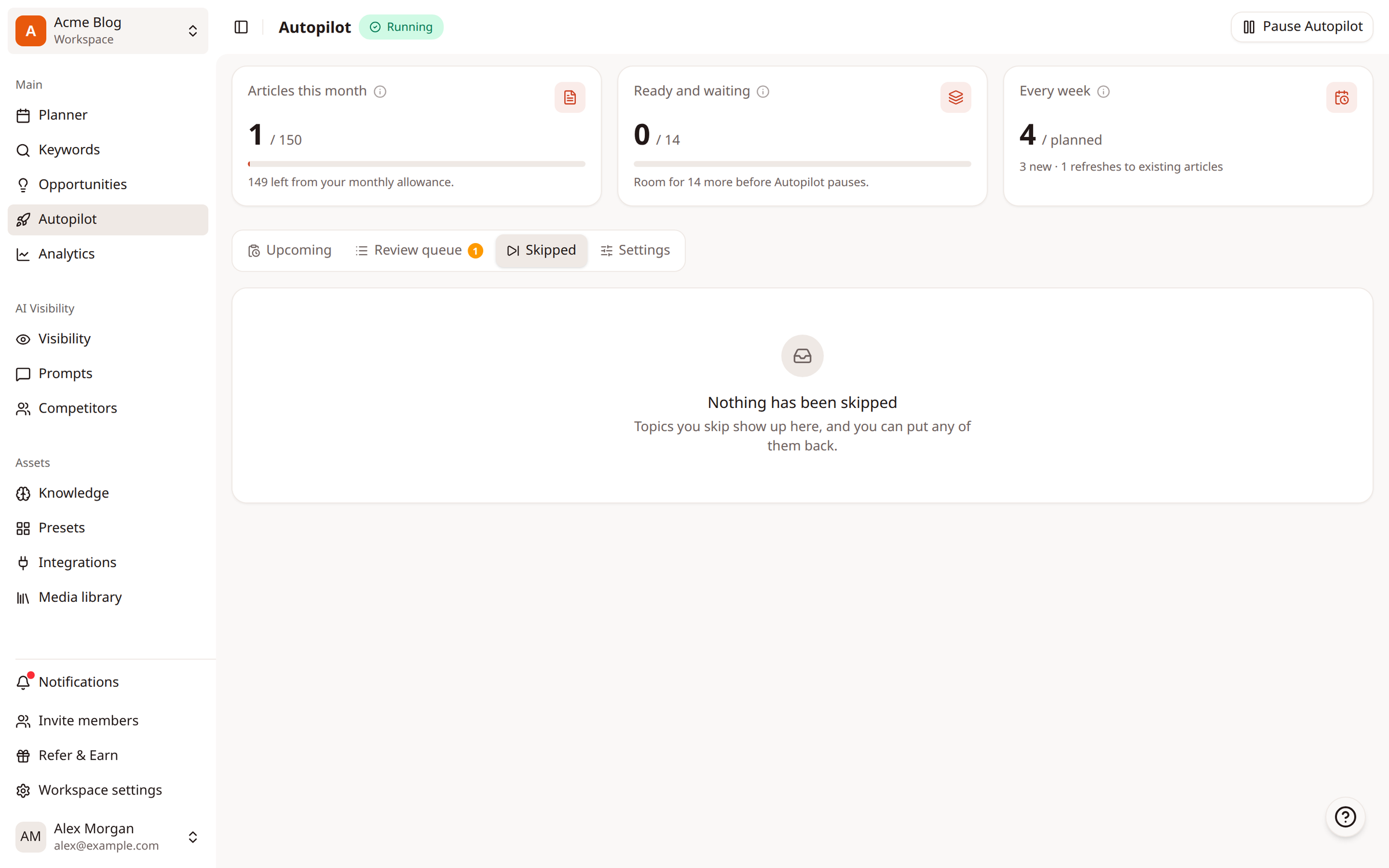
Open the Skipped tab to see every topic you skipped, and put any of them back.
Topic types
Type | Why Autopilot suggests it |
|---|---|
New article | Nobody on your site covers this search yet |
Quick win refresh | The page is close to page 1, and a small refresh could get it there |
Low click-rate refresh | The page ranks well, but few people click it |
Losing traffic refresh | Traffic to the page has been falling |
Worth improving | The page has room to climb |
Wrong page ranks | The wrong page of yours ranks for this search |
Competitor gap | A competitor ranks for this, and you don't |
Related
Was this article helpful?